Menu
OFFLINE USE GUIDE

Do E-Ink tablets work offline without Wi-Fi?

Yes. Once they are set up and your files are downloaded, current E-Ink tablets can read documents and take handwritten notes without Wi-Fi. The real difference is what happens next: some let you move files by cable, while others need a connection before your work is backed up or shared.

By Yeinks8 min read
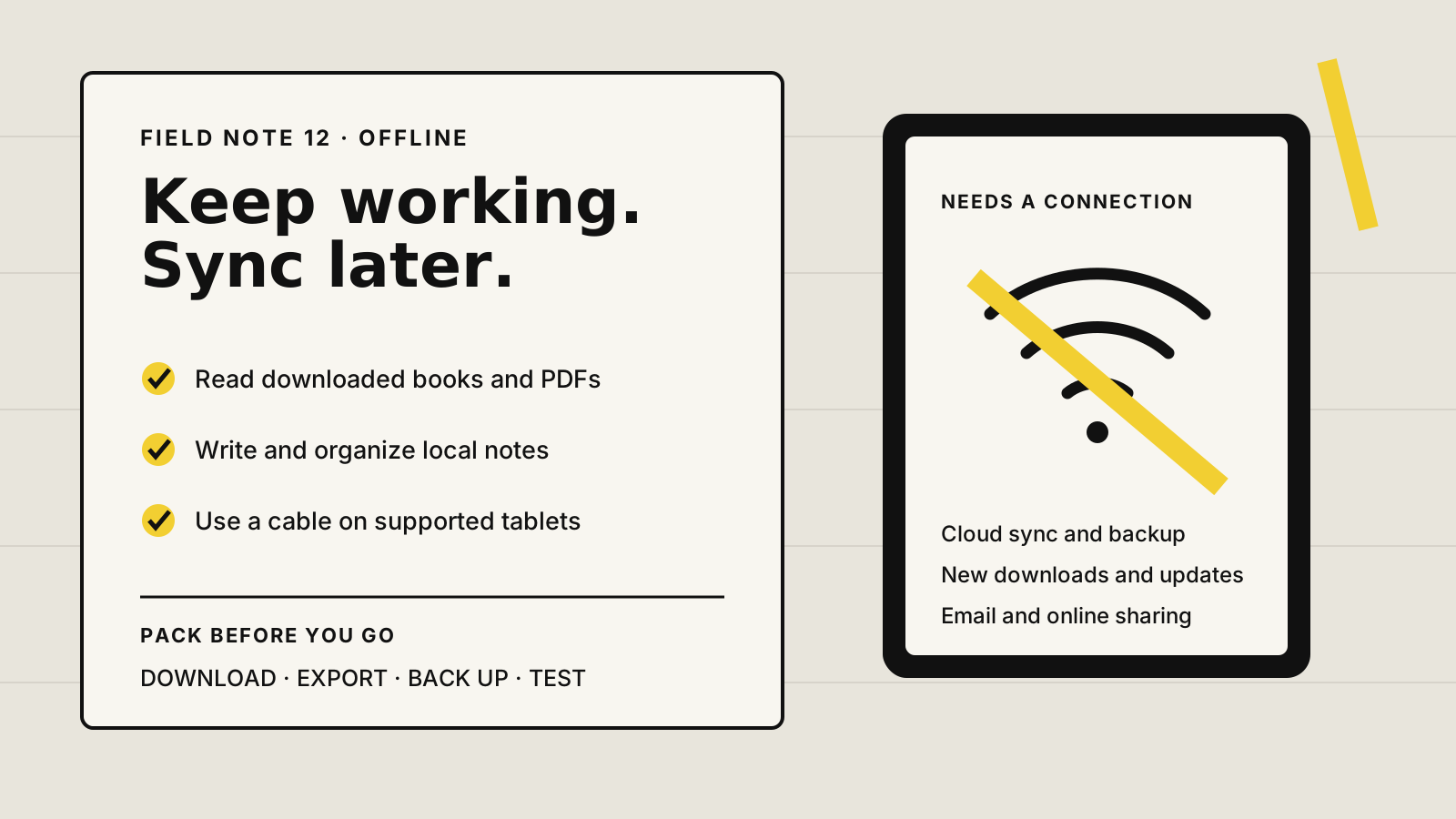
Offline E-Ink tablet checklist showing local reading and writing on one side and cloud features waiting for a connection on the other
Core work can stay local. Sync, backup and online sharing are separate jobs that need a connection. Illustration: Yeinks.

THE SHORT ANSWER

Offline writing is easy. Offline recovery is the part to compare.

All four platforms covered here can keep a downloaded document or local notebook usable when Wi-Fi disappears. Supernote publishes the clearest fully offline route and supports cable or USB-drive transfer. reMarkable and BOOX also provide local cable transfers. Kindle Scribe works well for reading and writing away from a network, but reconnecting matters more because its notebook backup and sharing routes are cloud-led.

If you travel, work in a controlled office or simply dislike cloud dependence, ask three questions before buying: can the tablet be set up in your environment, can you move a copy of your notes without the internet, and what happens if the device is lost before it reconnects?

HOW THIS GUIDE WAS MADE

We checked the documented transfer and sync paths.

Yeinks checked current manufacturer help pages on October 12, 2026. We have not tested all four tablets in airplane mode side by side. “Works offline” here means that files already stored on the device remain usable for their ordinary reading or note-taking job. It does not mean every app, search tool, conversion feature or backup route works without a network.

AT A GLANCE

What works, and how your files get out

PlatformCore offline useLocal exit routeWaits for a connection
Supernote Manta and NomadNotes, local files and organizationUSB-C cable or USB driveCloud sync, email and network transfer
reMarkable tabletsNotebooks and files already on the tabletUSB web interfaceCloud sync, integrations, email and new downloads
BOOX tabletsNotes, local documents and offline-capable Android appsUSB file transfer and local backupCloud sync, web services and online-only apps
Kindle ScribeDownloaded books, documents and notebooksReconnect for notebook backup and sharingStore downloads, cloud backup, universal search and sharing

Third-party Android apps on BOOX set their own offline rules. “Local exit route” describes a manufacturer-documented way to copy or export files without relying on its cloud.

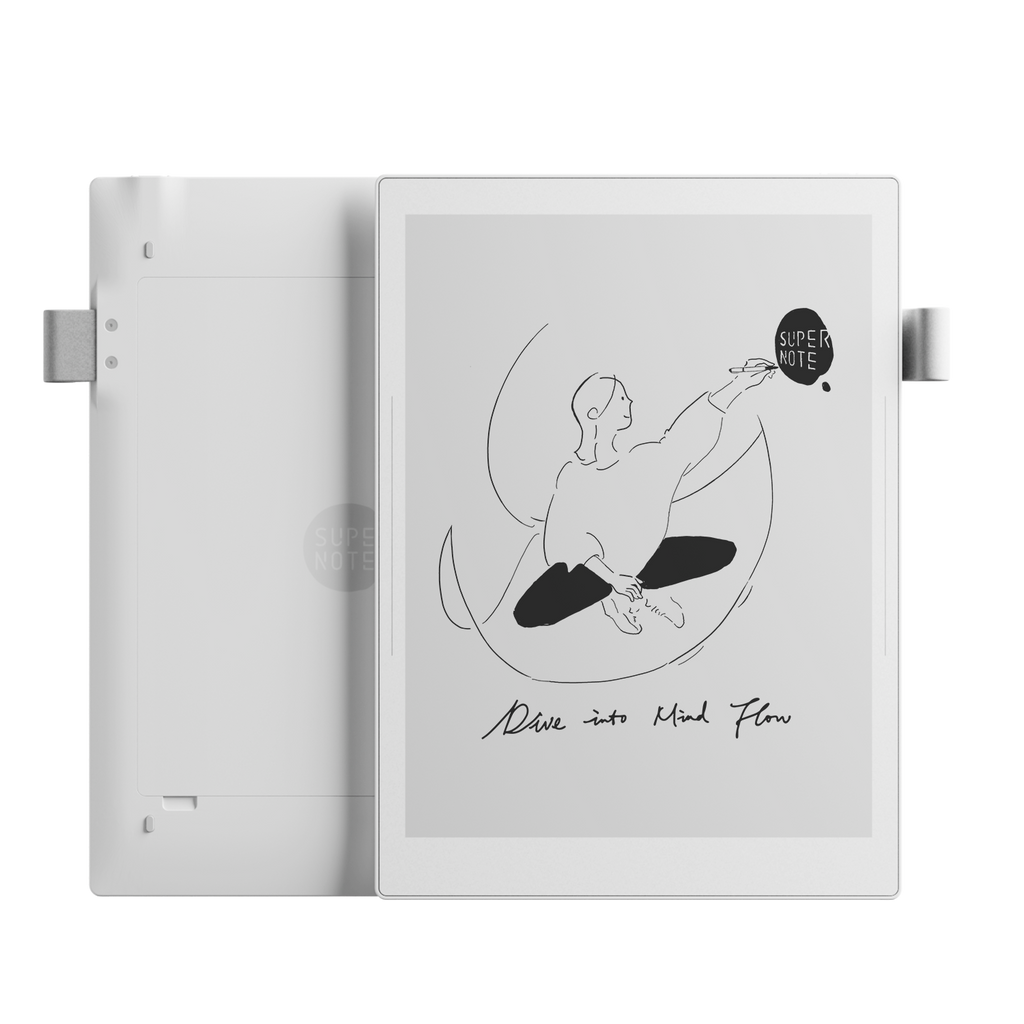
Official image of the Supernote Manta E-Ink notebook
Official image: Supernote
CLEAREST OFFLINE CHOICE

Supernote: local by design

Supernote explicitly says the device can be used fully offline and never has to connect to its cloud. Notes and files can move to a computer with a USB-C cable or USB drive. That makes Manta and Nomad the easiest recommendations when cloud avoidance is a firm requirement rather than a holiday convenience.

Cloud sync, Dropbox, Google Drive, email and Browse & Access are optional transfer routes. Browse & Access does not need the public internet, but it does need both devices on the same Wi-Fi network. On a locked-down work computer, macOS cable access may also require an MTP utility, so test that software before relying on it.

A local workflow still needs a backup habit. Copying a note to a second device is what protects it. Merely keeping it off the cloud does not.

Read our Supernote Manta evidence review →
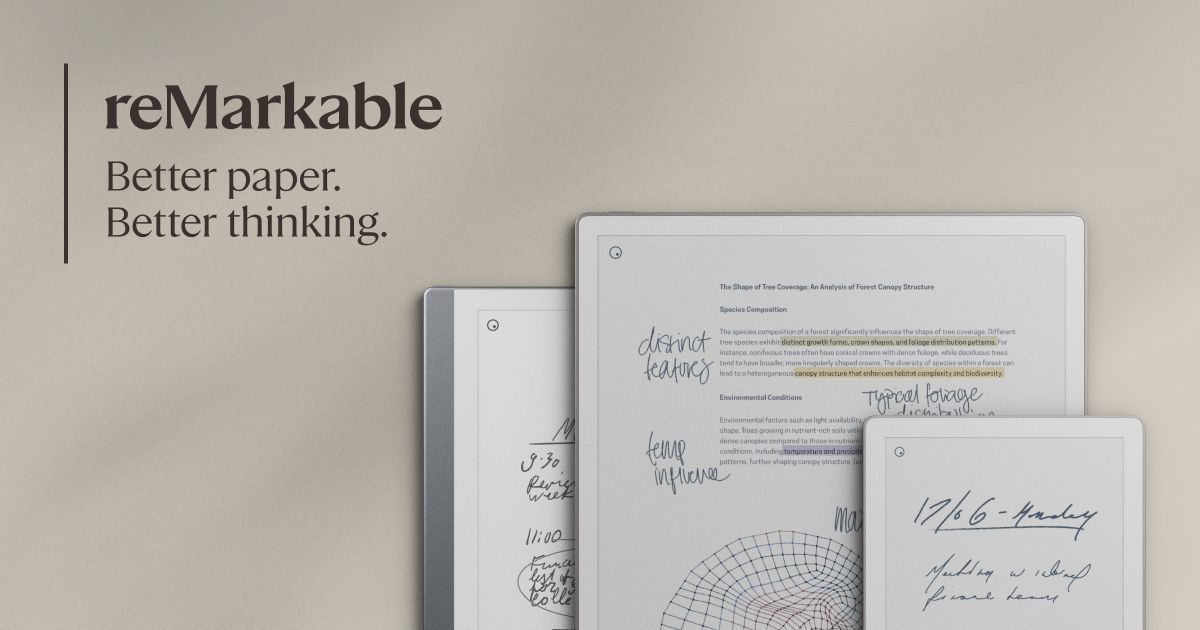
Official image of the reMarkable Paper Pro
Official image: reMarkable
SIMPLE CABLE TRANSFER

reMarkable: write locally, sync when Wi-Fi returns

Notebooks, PDFs and ebooks already on a reMarkable remain the useful part of the device away from Wi-Fi. The company documents a USB web interface for importing and exporting PDF, EPUB and reMarkable document files through a browser on a connected computer. That gives you a local route even when the companion apps cannot sync.

Automatic sync, cloud integrations and online sharing wait for a connection. The USB interface is also more limited than the desktop app, including a documented 100MB transfer limit. Prepare large files and prove the export route before a long trip instead of discovering the edge case at the airport.

If cloud features and recurring costs are part of the decision, our E-Ink tablet subscription guide separates offline basics from paid extras.

Read our reMarkable Paper Pro evidence review →
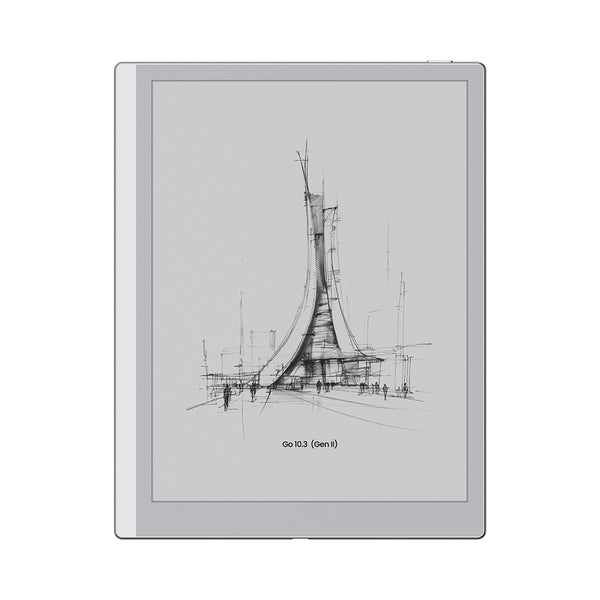
Official image of the BOOX Go 10.3 Gen II
Official image: BOOX
MOST FLEXIBLE, MOST VARIABLE

BOOX: strong local tools, app-by-app rules

BOOX tablets can keep local documents, handwritten notes and downloaded app content available without Wi-Fi. BOOX documents USB file transfer for Windows and macOS, plus local backups for reading data on current firmware. Notes can be exported before copying them from device storage.

The complication is Android. One app may keep a complete offline library while another may need a login, license check or live connection. BOOX cloud sync also needs an ONYX account, and third-party storage naturally needs its own sign-in. Test each essential app with airplane mode on during the return window.

For a low-friction trip, download files into local storage rather than leaving them visible only inside a cloud provider. Our PC-to-BOOX transfer guide covers the main cable and network options.

Read our BOOX Go 10.3 Gen II evidence review →
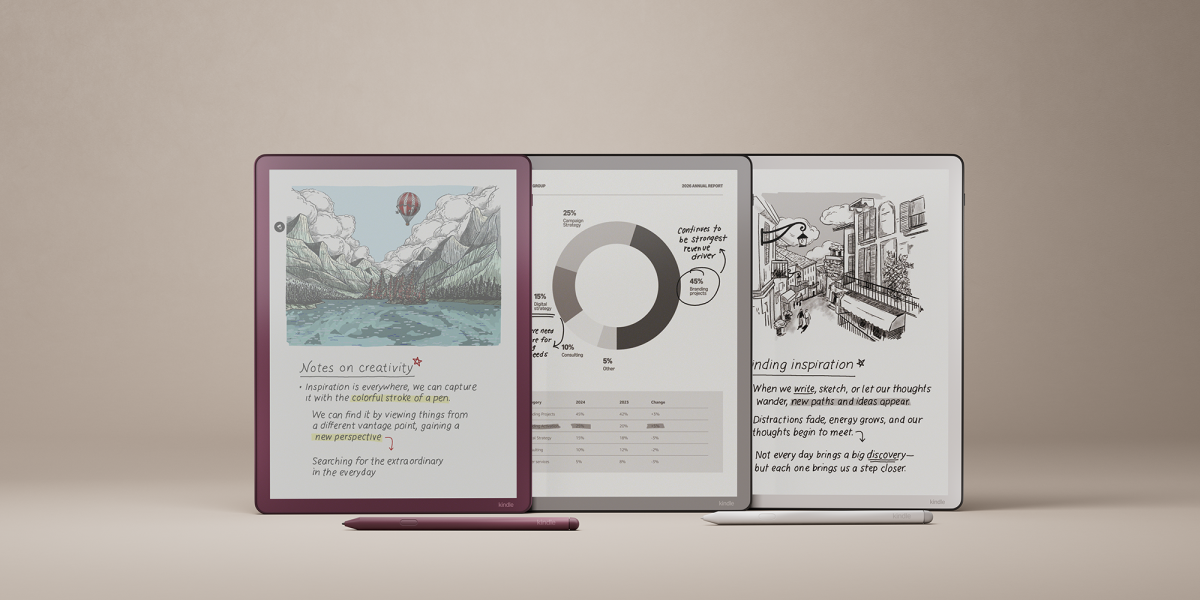
Official image of the current Kindle Scribe family
Official image: Amazon
BEST WHEN CONTENT IS PRELOADED

Kindle Scribe: excellent offline reading, cloud-led notebooks

Kindle Scribe is comfortable offline once books and documents are downloaded. You can also keep writing in notebooks without a live connection. Initial setup is different: Amazon requires an account and internet connection to register a new Scribe.

Reconnect regularly if the notebooks matter. Amazon says Scribe notebooks are backed up to the cloud only when the device is online and Sync is turned on. New Store downloads, cloud-only items and the current universal search also need a connection. Search can show a book that is not stored locally, but opening it still triggers a download.

This is a good travel device when you load the library first and accept that notebook sharing and backup happen later. It is a weaker fit for a strict no-cloud policy because Amazon's documented setup and recovery model starts with an account.

Read our Kindle Scribe evidence review →

BEFORE YOU GO OFFLINE

A five-minute test prevents a week of awkward workarounds

  1. Download the real files. Open each book, PDF and template while you still have a connection.
  2. Turn on airplane mode. Read, annotate and create a test notebook using your normal tools.
  3. Export one page. Use the cable, drive or local method you expect to have available.
  4. Make a second copy. Offline storage is not backup, especially if the only copy travels with you.
  5. Reconnect deliberately. Confirm sync finishes before deleting, resetting or changing accounts.

BOTTOM LINE

Choose the backup path, not just the offline promise.

For the clearest no-cloud workflow, Supernote has the strongest published position and practical local transfer options. reMarkable is also workable offline if its USB web interface fits your file sizes. BOOX gives you the most flexibility, but every Android app adds its own rules. Kindle Scribe is dependable for a prepared reading trip, yet it expects you to reconnect for setup, backup and sharing.

If local storage is the next question, see how much E-Ink tablet storage you actually need. The right capacity is the amount that holds your working library before Wi-Fi disappears.

Primary sources checked

Checked October 12, 2026. Manufacturer documentation can change with firmware and regional services. Confirm account, app and security requirements for your exact workplace and device before buying.

SupernoteFully offline use and local USB transfer statement ↗SupernoteCloud, email, USB and local-network transfer methods ↗reMarkableImport, export, USB web interface and Wi-Fi sync guidance ↗BOOXUSB, local-network and online transfer options ↗BOOXCloud sync requirements and local reading-data backup ↗AmazonKindle Scribe setup, account and internet requirements ↗AmazonKindle sync and Scribe notebook cloud backup ↗AmazonScribe universal search and download behavior ↗