Menu
WORD DOCUMENT GUIDE

Can E-Ink tablets open Word documents?

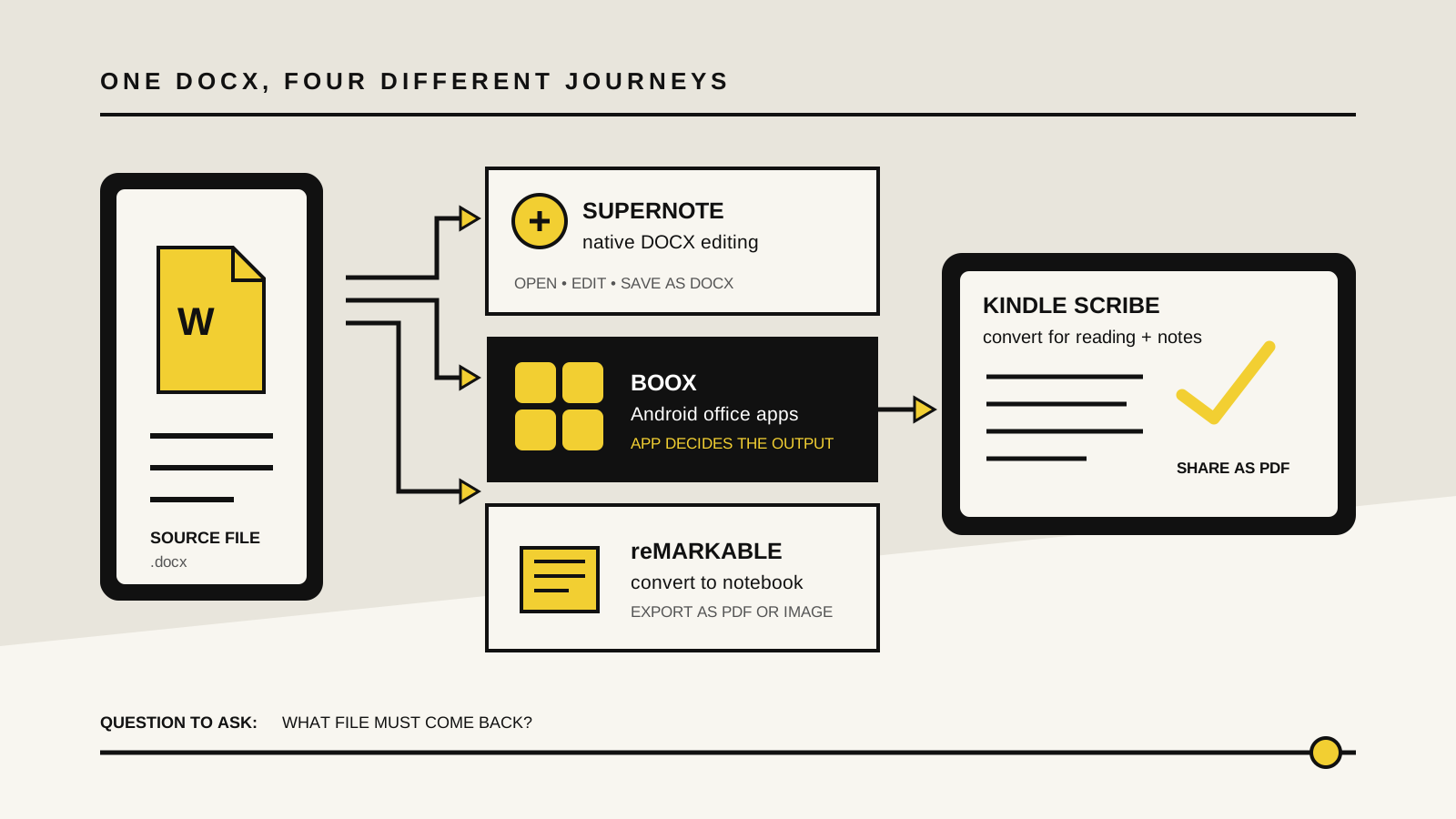
Yes, but “open” can mean four different things. Supernote can work with DOCX files directly, BOOX can use Android office apps, reMarkable converts Word files into notebooks, and Kindle Scribe turns them into Kindle documents for reading and annotation.

By Yeinks8 min read
Diagram comparing native DOCX editing, Android office apps, notebook conversion and reading-only conversion on E-Ink tablets
A Word file can remain a DOCX, open in an Android app or be converted into a notebook or reading document. Those routes are not interchangeable. Illustration: Yeinks.

THE SHORT ANSWER

Most major E-Ink tablets can open a Word document. Only some can give it back as a Word document.

Choose Supernote for straightforward native DOCX editing. Choose BOOX if you need Android office apps and cloud services. Choose reMarkable or Kindle Scribe when the real job is reading and marking up a copy, not maintaining a live Word file.

The deciding test is the return journey. Ask whether you need to preserve layout, comments and the DOCX format after making changes. A device that displays the words perfectly can still be the wrong tool if its export is only a PDF.

HOW THIS GUIDE WAS MADE

This is a documented workflow comparison, not a formatting stress test.

Yeinks checked current manufacturer help pages and product information on October 22, 2026. We did not run the same complex Word file through every device, so we are not claiming perfect fidelity for tables, tracked changes, fonts or page layouts. Software, subscription rules and supported formats can change. Test one representative document during the return period if Word compatibility affects your purchase.

AT A GLANCE

Opening DOCX is easy. Preserving the workflow is harder.

PlatformHow Word files openWhat you can doWhat comes backBest description
Supernote Manta and NomadNative DOCX supportCreate, view and make basic text editsDOCXThe closest fit for a simple Word round trip
BOOX tabletsNeoReader plus Android appsRead in NeoReader or edit in a compatible Android office appDepends on the app; NeoReader ink does not embed in DOCXThe most flexible, but also the most complex
reMarkable paper tabletsConvert to Notebook with ConnectTurn DOCX into an editable reMarkable notebookPDF, PNG, SVG or text rather than DOCXGood for focused revision, not preserving the original Word file
Kindle Scribe familyConvert through Send to Kindle or cloud importRead, highlight and add supported handwritten notesShared or cloud-exported PDFA document reader and annotator, not a Word editor

DOCX support is not a promise that every font, field, comment, macro or layout element survives unchanged. Protected documents can also fail to import or convert.

THE ONE-MINUTE TEST

Decide whether you need a Word editor, a proofing surface or a quiet reader.

A Word editor changes the DOCX file and saves it for someone else to continue editing. A proofing surface lets you write feedback on a stable copy, often returning a PDF. A quiet reader converts the document into a format that suits the E-Ink screen and treats the original as source material.

All three can be useful. Trouble starts when a reading-and-annotation workflow is mistaken for a round-trip editing workflow.

HOW EACH PLATFORM WORKS

Four sensible approaches, with four different limits

01

Supernote: the clearest native DOCX route

Supernote says Manta and Nomad can create, view and edit Word documents. Its built-in workflow includes a keyboard mode for revising, adding and deleting text, plus a handwriting mode that can turn written input into typed text. Reflow can rearrange text to fit the display instead of forcing you to pan across a desktop-sized page.

This is the most direct option here when the file must remain a DOCX. It is still a focused tablet, not desktop Microsoft Word. Treat it as a good tool for drafting, light corrections and straightforward documents. If your work depends on tracked changes, unusual fonts, complex tables, citations or strict pagination, test those features rather than assuming “edit Word documents” covers them.

02

BOOX: open the file natively or choose an Android app

BOOX NeoReader supports DOC and DOCX among its many document formats. Current BOOX tablets with Google Play can also run compatible Android office apps, which is the broadest route to Word, Google Docs, OneDrive or another document service on E-Ink. That flexibility makes BOOX the strongest choice when a company account or cloud app is part of the job.

The two routes have different consequences. BOOX says you can annotate formats supported by its reader, but only PDF annotations can be embedded. Handwriting placed over a DOCX in NeoReader therefore should not be treated as part of the Word file. Use a real office app when the DOCX must travel onward, or convert a review copy to PDF before marking it up.

03

reMarkable: convert the Word file into a notebook

reMarkable's current Convert to Notebook feature can import DOCX files as editable notebooks through its web app or supported cloud integrations. This is a useful shift when you want to remove Word's interface, revise the text with a keyboard and pen, and work inside reMarkable's focused page system.

The trade-off is in the name: it is a conversion, not live editing of the original DOCX. reMarkable's documented export choices are PDF, PNG, SVG and, for purely typed material, text in email. Cloud exports are saved as PDF. Connect is also required for importing Word files as editable notebooks. Choose this route for focused revision or annotation, not for sending a fully preserved DOCX back to a colleague.

04

Kindle Scribe: convert for reading and handwriting

Amazon supports DOC and DOCX through Send to Kindle and, on current Scribe models, through Google Drive or OneDrive connections. The document is converted for the Kindle library. You can read it, highlight it and use supported notes such as active canvas, sticky notes and margin writing.

That makes Scribe a strong proofing device when reading is the main job. It is not Microsoft Word. Amazon's sharing and cloud workflows return annotated personal documents as PDFs, not editable DOCX files, and cloud-drive connections require manual import and export rather than live synchronization. If someone expects tracked changes in the original file, use Word elsewhere.

PICK BY THE RETURN FILE

Start with what the next person needs

Your real requirementBest starting pointWhy
Change wording and return a DOCX fileSupernote or BOOX with a Word-compatible Android appTest the exact formatting and cloud route you use before buying.
Read a long draft and send handwritten feedbackKindle Scribe or reMarkableBoth favor calm reading and annotation, but the return copy is not an editable DOCX.
Keep advanced Word layout, comments or tracked changes intactA laptop or conventional tabletE-Ink conversion and mobile office apps can simplify or alter complex documents.
Work in OneDrive with ordinary Android office appsBOOXGoogle Play provides the broadest app route, subject to the app, account and model.
Draft simple text without carrying a laptopSupernoteIts native Word tools can create and edit DOCX files without turning the device into a general tablet.

TEST BEFORE YOU TRUST IT

Use one awkward document, not a blank page

  1. Copy the file first. Keep the original DOCX somewhere safe before importing or converting it.
  2. Include the difficult parts. Your sample should contain a table, comments, headings, an image, a page break and any special font your work actually uses.
  3. Make a real change. Edit text, add a handwritten note and move a paragraph. Do not stop after confirming that page one opens.
  4. Export to the required format. If the next person needs DOCX, a neat PDF is not a successful result.
  5. Open the result on a computer. Check layout, annotations, comments, file name and cloud location before using the tablet for important work.

If typed drafting is the bigger goal, see our guide to the best E-Ink tablets with keyboards. For ink that needs to become reusable typed text, compare handwriting recognition and export. Our E-Ink app support guide explains why BOOX behaves more like a normal Android tablet than the other platforms.

BOTTOM LINE

Yes, E-Ink tablets can open Word documents. The file's next stop chooses the tablet.

Supernote is the cleanest focused choice for light DOCX editing. BOOX is the flexible choice when Android office apps and cloud storage matter. reMarkable and Kindle Scribe are better understood as conversion, reading and annotation devices.

If a document must come back with complex Word features intact, keep a laptop or conventional tablet in the loop. E-Ink is at its best when it removes noise from reading and drafting, not when it is asked to impersonate a full desktop office.

Primary sources checked

Checked October 22, 2026. File support, subscription requirements, apps and cloud connections can change. Confirm the exact model and workflow before buying.

SupernoteCreating, viewing, editing and reflowing Word documents ↗BOOXDOC and DOCX support, Google Play and annotation export limits ↗reMarkableImporting Word files with Convert to Notebook ↗reMarkableDOCX conversion, Connect requirements and cloud export behavior ↗reMarkableSupported export formats ↗AmazonDOC and DOCX note features after Send to Kindle conversion ↗AmazonKindle Scribe cloud import and PDF export rules ↗