Menu
HANDWRITING GUIDE

Do E-Ink tablets convert handwriting to text?

Yes. reMarkable, Supernote, BOOX and Kindle Scribe all recognize handwriting, but they disagree on what happens next. The useful question is not just whether conversion exists. It is whether the result can be corrected, exported and reused in your workflow.

By Yeinks9 min read
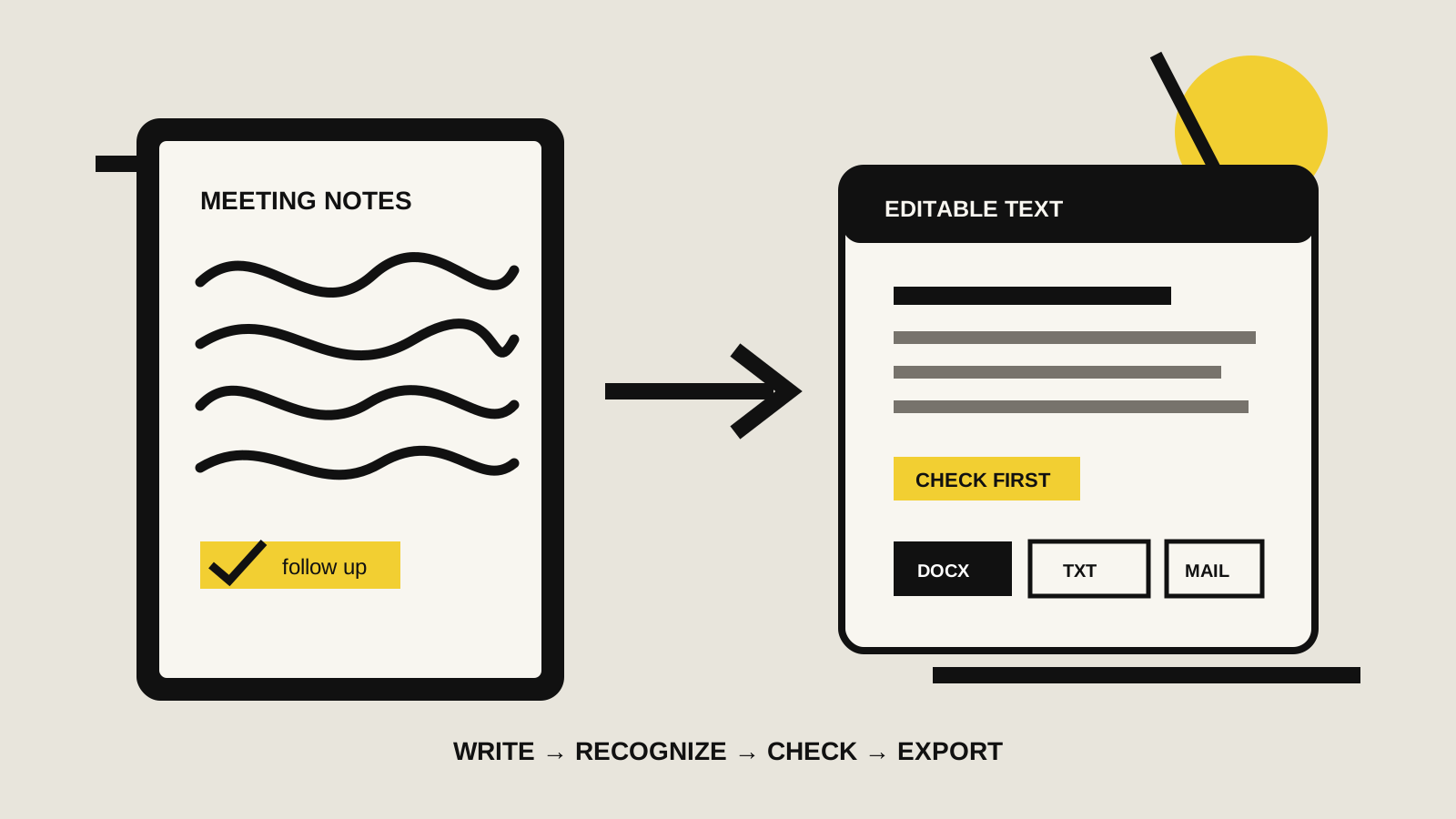
Diagram showing handwritten notes being recognized, checked and exported as editable text
Recognition is only the middle of the job. The best workflow lets you check the result and move it somewhere useful. Illustration: Yeinks.

THE SHORT ANSWER

Major note-taking E-Ink tablets can turn handwriting into typed text.

Supernote has the most deliberate handwriting-first export workflow, BOOX gives you the most ways to move recognized text into other apps, reMarkable makes conversion easy inside its notebook system, and Kindle Scribe is simplest when emailing a converted notebook is enough.

None of them makes proofreading optional. Names, abbreviations, diagrams, equations, mixed languages and untidy page layouts can still confuse recognition. Treat the first result as a draft, not a transcript you can send without reading.

HOW THIS GUIDE WAS MADE

This is a documented workflow comparison, not a recognition-accuracy test.

Yeinks checked current manufacturer help pages and software notes on October 18, 2026. We did not write the same sample on all four platforms, so this guide does not rank recognition accuracy. Accuracy depends heavily on handwriting, language, page structure and software version. The comparison focuses on the supported conversion route and what you can do with its result.

AT A GLANCE

All four convert handwriting, but the output is different

PlatformWhat it convertsWhat you getMain catch
reMarkableWhole pages or a lassoed selectionEditable text inside a notebook; email, cloud export and connected appsConversion on the tablet needs Wi-Fi and a reMarkable account
Supernote Manta and NomadReal-time recognition notes, standard notes and selected handwritingTXT or DOCX; recognized text can also sit in a note text boxReal-time recognition notes trade away some standard-note tools
BOOX tablets with pen supportA page or lassoed selection in the native Notes appEdit, copy, share or insert the recognized textThe many recognition and export routes take more learning
Kindle ScribeDownloaded notebooks through the Share menuA shared TXT file and optional searchable notebook PDFPreview edits are not saved back to the notebook

Features can vary by model, software version, region and notebook type. Update the device and check the exact workflow before buying around one export format.

THE IMPORTANT DISTINCTION

Recognition, search and editable text are three separate promises.

A tablet may index handwriting so you can search for a word without replacing the ink. It may convert a selected passage into a text box. It may export an entire notebook as a TXT or DOCX file. Those outcomes sound similar in a feature list, but they solve different problems.

If you want meeting minutes in Word, test the whole-notebook export. If you only need to find an old note, check handwriting search. If you want mixed ink and typed paragraphs on one page, confirm that conversion can return editable text to the notebook.

HOW EACH PLATFORM WORKS

The practical handwriting-to-text routes

01

reMarkable: clean conversion inside the notebook

reMarkable can convert a handwritten page into a new typed page while leaving the original ink intact. You can also lasso a smaller selection and replace that handwriting with typed text on the current page. The second route is quicker for corrections or mixed pages, but it removes the selected ink, so use the whole-page command when you want to preserve the source.

The converted text is editable with the on-screen keyboard or Type Folio. It can be sent as inline email text or moved through reMarkable’s cloud and app workflow. On-device conversion requires Wi-Fi and a reMarkable account. reMarkable says basic handwriting conversion remains available without a Connect subscription, while some desktop, webnote and connected-app features sit inside Connect.

02

Supernote: strongest when recognition is part of note-taking

Supernote offers real-time recognition notes that process handwriting in the background while the note stays open. You can view the result, re-run recognition on a page and export the recognized notebook as TXT or DOCX. Standard notes can also be recognized during TXT or DOCX export, so you do not have to choose the real-time note type for every job.

The trade-off is structure. Supernote says background recognition starts after you stop writing or touching the screen, and pauses when you resume. Its real-time recognition note type also has different tools from a standard layered note. Newer Manta and Nomad software can convert lassoed handwriting into an editable text box, which is useful when ink and typed text need to share a page.

03

BOOX: flexible conversion and easy copy-and-paste

In BOOX’s native Notes app, the recognition tools can turn handwritten notes into editable text. Smart Scribe can recognize a lassoed selection, so you can target part of a page instead of processing the whole notepad.

BOOX is especially useful when the destination is another Android app. After recognition, you can copy the text and paste it into an email client, document editor or knowledge app on the same tablet. That flexibility comes with a denser interface. If your workflow is simply “write, convert, export one file,” Supernote or reMarkable may feel more direct.

04

Kindle Scribe: straightforward notebook sharing, with a hard boundary

Kindle Scribe puts conversion in the notebook Share menu. You can quick-send recognized text to the email address on your Amazon account, or preview and edit each converted page before emailing it. Amazon says the shared TXT file is the route for copying the result into another document.

The important limitation is that preview corrections are not saved back to the Scribe notebook. Amazon also documents an internet requirement, a matching recognition language and several unsupported inputs, including diagrams, equations, highlighter writing, slanted writing and handwriting made in landscape orientation. It is a useful export tool, not a full round-trip text editor.

PICK BY THE NEXT STEP

Choose the workflow, not the conversion checkbox

Your jobBest starting pointWhy
Turn a long meeting notebook into a Word fileSupernoteReal-time recognition plus direct DOCX export is the clearest fit.
Convert part of a page and keep editing it beside the inkreMarkable, Supernote or BOOXAll three document a selection-based route that can place typed text back into the note.
Copy a short handwritten passage into another Android appBOOXRecognized text can be copied, then pasted into another app on the same device.
Email a notebook as typed text with minimal setupKindle Scribe or reMarkableBoth provide a direct share flow, but the result lands outside the original ink workflow in different ways.
Search handwritten notes laterCheck the exact platform featureSearch and conversion are related, but they are not the same feature or entitlement.

TEST BEFORE YOU COMMIT

Use one ugly, realistic page

  1. Write the way you normally write. Include a heading, bullet list, proper name, abbreviation, number and one correction.
  2. Use your real language. Confirm that the platform supports it and that the recognition language matches the note.
  3. Convert the whole page. Check paragraph order, bullets, punctuation and line breaks, not just individual words.
  4. Correct two mistakes. Make sure the editing step happens where you expect and does not destroy the original ink.
  5. Move the result to its final home. Open the TXT, DOCX, email, cloud file or pasted text in the app you actually use.

If you are choosing a device for broader work, read our E-Ink tablet guide for work and meetings. Writers should compare the best E-Ink tablets for writing. Our guide to using E-Ink tablets offline explains which other tasks still need Wi-Fi.

BOTTOM LINE

Yes, but buy for the destination of the text.

Handwriting recognition is now normal on serious E-Ink notebooks. The difference is what happens after the device reads your writing. Supernote is the clearest fit for recognized notebooks exported as Word or text files. BOOX is the flexible choice for moving text between apps. reMarkable keeps conversion tidy inside its focused notebook system. Kindle Scribe works when emailing a converted notebook is the finish line.

Whichever route you choose, keep the handwriting until the typed result has been checked. Recognition can save retyping. It cannot know that a plausible-looking wrong name is still wrong.

Primary sources checked

Checked October 18, 2026. Recognition features can change with software updates, account rules and region. Confirm the exact model and workflow before buying.

reMarkableWhole-page and selection conversion, editing, connection requirements and export routes ↗reMarkableHandwriting conversion features available without Connect ↗SupernoteReal-time recognition notes, standard-note conversion and TXT or DOCX export ↗SupernoteCurrent Manta and Nomad recognition and text-box changes ↗BOOXSmart Scribe lasso recognition and conversion into editable text ↗BOOXNative handwriting recognition and handwriting input tools ↗AmazonKindle Scribe conversion, preview editing, supported languages and TXT sharing ↗AmazonConnection requirements, unsupported inputs and large-notebook limits ↗