
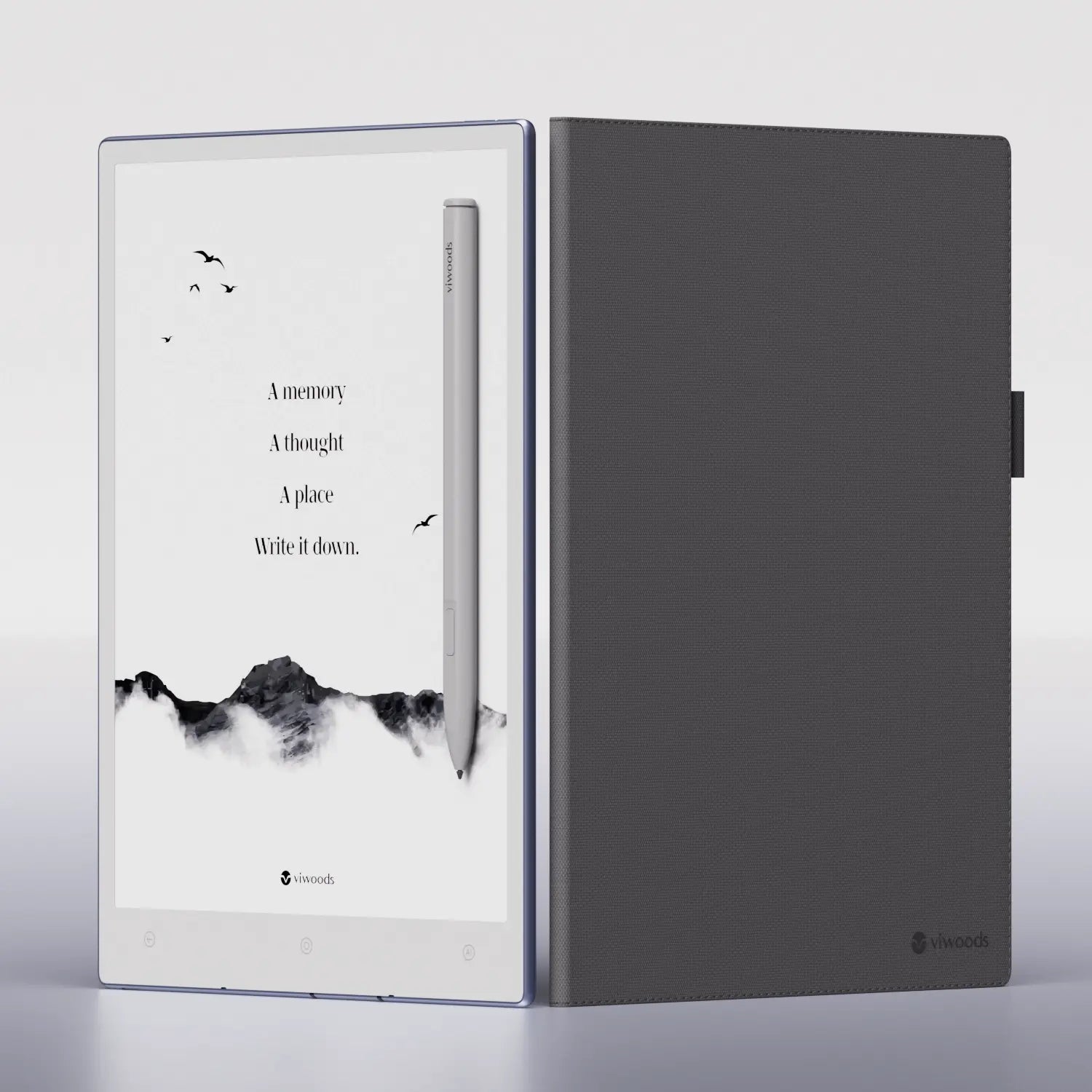
QUICK ANSWER
Treat the newest local note as the master copy.
If Viwoods Cloud sync is not working, stop editing that note on other devices. On the AiPaper or AiPaper Mini with the newest version, confirm the signed-in account and the cloud switch for the affected app. Use a stable network, open that app and watch one sync attempt with the screen awake.
Then sign in to cloud.viwoods.com. If the new note is there, the upload worked and the receiving device is stale. If it is not there, leave the local source untouched. A repeating “session has expired” message or a version that will not update is a support problem, not a reason to factory-reset the tablet.
BEFORE TROUBLESHOOTING
Protect the copy that is furthest ahead
Recent owners have reported sync pausing when the screen locks, individual modules not starting automatically and repeated session errors after the 3.15 rollout. Those reports establish real failure patterns, but they do not prove that every missing note has been deleted.
- Choose the source device.Find the AiPaper or Mini that shows the newest pages. Do not continue editing the same notebook on another device.
- Record the evidence.Take photos of the note title, page count, modified time, installed system version and any error message. Keep serial numbers out of public posts.
- Export anything critical.If the app offers a PDF or other readable export, save one independent copy before changing the account or cloud settings. An export is not a complete editable backup, but it protects the content.
- Leave local and cloud files in place.Do not delete a “duplicate,” clear cloud data or reset the device while you are still working out which copy is newest.
A reset erases local data. Signing into another account can also make content appear missing because Viwoods links content to each account separately. Confirm the web copy and speak to support before either step.
IDENTIFY THE GAP
Find where the sync chain stops
Viwoods says Paper, Meeting, Knowledge Base, Memo and Daily each have their own cloud control. Learning is different: books are selected for upload, then reading progress, bookmarks, highlights and annotations can sync. Check the affected module instead of treating the whole tablet as one switch.
Check that app’s cloud switch, then open that app and watch one sync attempt.
Confirm the same Viwoods account, installed version and a working connection.
Leave the source copy alone and troubleshoot only the receiving device.
Keep the source device unchanged, test once and contact support if it still fails.
Do not reset or delete cloud data. Capture the message and escalate.
Learning uses selected book uploads, not the same automatic flow as Paper.
Also check storage. Viwoods includes 10 GB of cloud space. If the account is full, take a screenshot of the storage status and ask support how to proceed. Do not free space by deleting the only known copy of a notebook.
SAFE, REVERSIBLE CHECKS
Run one controlled sync test
- Confirm the supported devices.This guide applies to AiPaper and AiPaper Mini on the 3.15 cloud system. AiPaper Reader uses a different software line and is not included here.
- Check the installed version.Open system update and compare the installed number with Viwoods’ current version history. If the tablet says it is current while remaining behind the offered release, save a screenshot and contact support. Do not sideload a package from a forum.
- Confirm the same Viwoods account.Compare the account identifier on both devices and the web portal. Do not switch accounts merely to experiment because account data is deliberately isolated.
- Check the affected app’s switch.Cloud is off by default and each supported app can be controlled separately. Turn on only the module you are testing.
- Use a known-good connection.Viwoods recommends rebooting the device and router, checking the password and signal, testing another device, then trying another Wi-Fi network or hotspot if needed.
- Open the app and keep the screen awake.Create a harmless one-line test note, then watch the app for one complete attempt. Some owners report that this temporarily helps when background sync pauses. It is a diagnostic workaround, not a confirmed permanent fix.
- Check the web portal before the second device.If the test appears on the web, the source upload works. If it does not, stop there and preserve the source device for support.
Keeping Paper or Meeting open with the screen awake has allowed some owners to observe progress. This may help a queued upload finish, but it should not be presented as normal automatic behavior. If sync only works this way, report the version and module to Viwoods.
AUTHENTICATION ERRORS
“Session has expired” needs a cautious response
If the message returns after one normal sign-in attempt, capture it and stop cycling through accounts. Owners have reported that rebooting and signing back in did not consistently clear this error. That makes repeated authentication changes poor evidence and a possible risk to unsynced work.
- Check the web portal in a private browser window.This shows whether the account itself can authenticate without changing the tablet.
- Note which app triggers the message.A Paper-only error is different from every cloud module failing at once.
- Record the exact system version and time.These details help Viwoods match the fault to a rollout or server log.
- Keep the newest device offline if necessary.If another device shows older content and you are worried about a conflict, pause further syncing until support confirms the safe direction.
Do not clear Viwoods Cloud, delete local app data, factory-reset, install unofficial firmware or use developer commands. None of those steps is part of Viwoods’ public cloud troubleshooting guidance, and all can complicate recovery.
WHEN TO ESCALATE
Contact Viwoods when the test cannot reach the web
Contact support when the current local note never appears at cloud.viwoods.com, “session has expired” repeats, the device will not offer an update shown in version history, a module switch will not stay enabled, or sync works only while the screen is awake.
Include the device model, installed version, Viwoods account email, affected module, approximate time, network type, screenshots, whether the web portal has the note and whether another device is involved. Send serial numbers and diagnostic details only through Viwoods’ private support channel.
Viwoods’ public pages direct customers to service@viwoods.com. Ask support to confirm which copy is authoritative before you sign out, unbind an account, clear cloud data or reset anything.
SOURCES
Official guidance and reporting limits
Viwoods documentation and recent owner reports were checked on October 6, 2026. Owner reports were used to identify symptoms and confusing edge cases, not to estimate a failure rate or prove one cause. Yeinks has not reproduced the fault.