
QUICK ANSWER
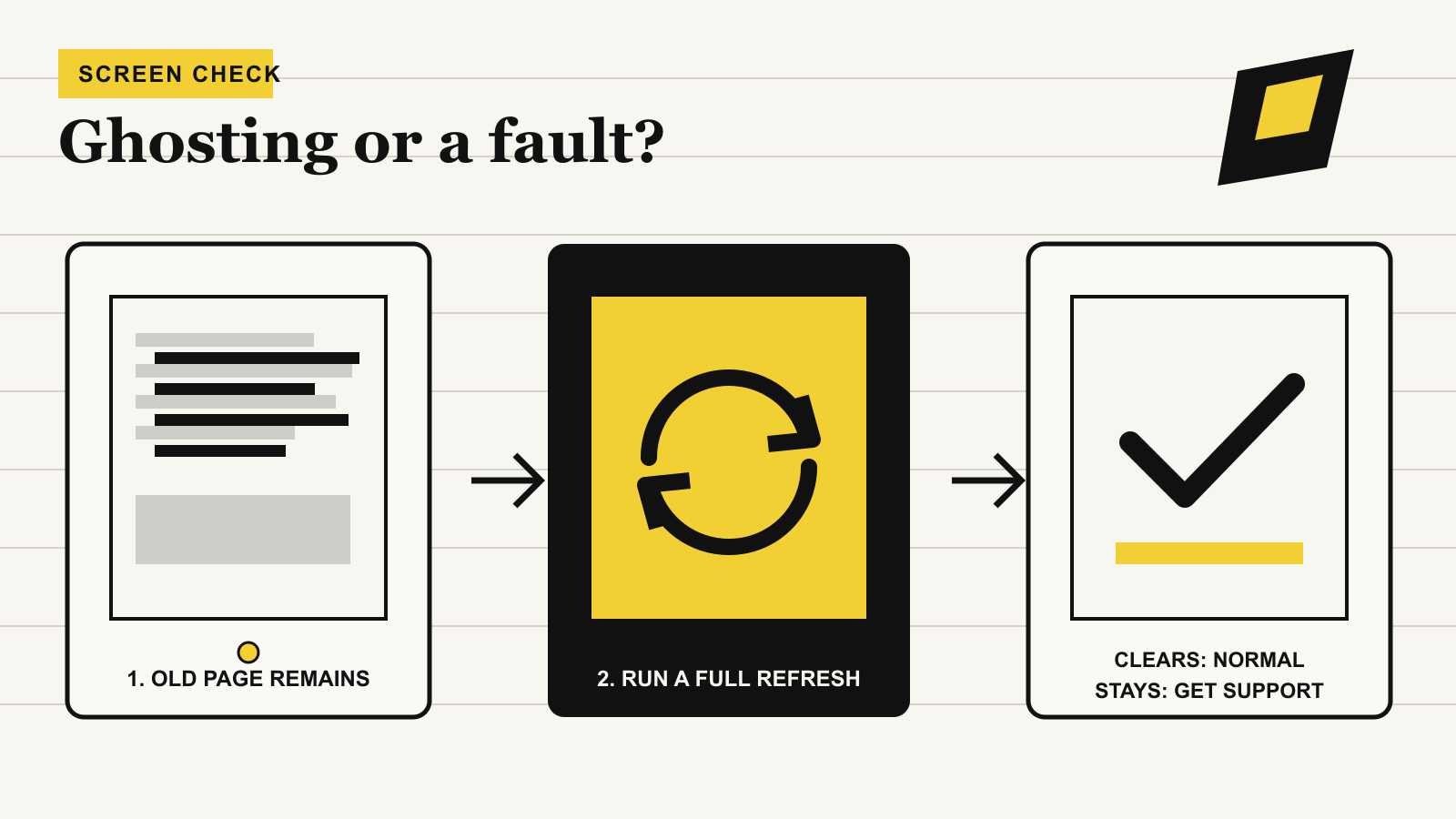
Run one proper full refresh before you call the screen faulty.
A faint trace of the previous page is common on E-Ink, especially after dark images, fast scrolling or several partial updates. Use your device's full-refresh control, then wait for the redraw to finish. If the trace disappears, choose a cleaner refresh mode or a more frequent full refresh when you need a pristine page.
If a clear outline stays visible after a full refresh, restart once and compare a simple notebook, the home screen and a second document. Persistent marks across all three are not something a factory reset should be used to diagnose. Photograph the settled display and contact support.
WHY IT HAPPENS
Ghosting is leftover pigment, not the same thing as OLED burn-in
E Ink explains that its displays move electrically charged particles through tiny capsules or cups. A device can update only the parts of the screen that changed, which makes page turns quicker and helps conserve power. The trade-off is that a partial update may leave a faint remnant of the earlier image.
A full refresh drives the whole display through a more complete redraw. It can flash black, white or through colours before settling. That flash is expected. “Burn-in” is a common search term for the symptom, but an E-Ink afterimage that clears on refresh is not the permanent pixel wear people associate with OLED screens.
FIVE-MINUTE CHECK
Start with reversible tests and change one thing at a time
- Photograph the settled screen.Use even room light and include enough of the device to show the problem. Note which page or menu created the remnant.
- Trigger one full refresh.Use the manufacturer control described below. Wait for the redraw to finish before judging the result.
- Compare three places.Open a plain notebook page, the device home screen and a different document. A problem confined to one file or app points away from a universal panel fault.
- Return the device to room temperature.If it is very hot or cold, let it sit indoors without charging or direct sunlight, then test again. Do not heat, chill or press the screen.
- Restart once and check official updates.Use the normal restart option. Record the exact model and software version before changing anything else.
A reset erases local data and does not prove whether the display, file or refresh software is responsible. Do not drain the battery, install unofficial firmware, enter developer mode or open the device as a ghosting test.
USE THE RIGHT CONTROL
Full-refresh controls differ by brand and software version
Use Full Refresh, then favour clarity for static pages
On current BOOX software, open Control Center, enter EinkWise and use Full Refresh. HD is the cleaner choice for books, documents and still images; faster modes trade some clarity for smoother movement. BOOX can also assign Full Refresh to a gesture, navigation bar or Navigation Ball. Names and options vary by model and firmware, so use the labels on your own device.
Swipe upward on the refresh sidebar
On Manta and Nomad, a one-finger upward swipe on the appropriate sidebar refreshes the display. The side changes with left-handed mode. Current software also provides Auto Refresh under Settings > Display & Input. A manual refresh that clears the image is reassuring; needing it unusually often is worth recording.
Turn on Page Refresh if your model offers it
Look under Reading Options for Page Refresh. The exact location varies with model and software. Then close and reopen the book or notebook and restart normally if the problem remains. Check Amazon's update page against the exact Kindle model before installing anything manually. Never use another model's package.
Use a normal screen redraw, then test outside the file
reMarkable does not expose the same refresh-mode panel as BOOX. Close the document, let the interface redraw, sleep and wake the tablet once, then restart normally if needed. Paper Pro owners whose image remains after an update should follow our Paper Pro ghosting checklist, which covers software, sync and support evidence in detail.
Bigme, Viwoods and other Android E-Ink devices can expose several speed and clarity profiles too, but menu names differ enough that a borrowed BOOX sequence may be wrong. Use the manual for your exact model and look for “full refresh”, “clean”, “quality” or “regal” rather than changing every display slider at once.
READ THE RESULT
The response to a full refresh matters more than how dramatic the first image looks
Usually normal afterimage behaviour. Use a cleaner refresh mode when clarity matters.
More likely a content, app or refresh-profile problem than a damaged panel.
A speed-versus-clarity trade-off. Choose the slower, cleaner mode for reading.
Not ordinary accumulated ghosting. Document it and contact the manufacturer.
Dark book covers, menus, comics and colour illustrations often make afterimages easier to see because the display is moving from a large dark area to a light one. That alone does not show damage. A strong, stable shape that remains after a completed full refresh is more concerning than a faint trace that comes and goes during partial updates.
Software timing can matter too. Supernote's release notes have included changes to refresh behaviour and fixes for late-drawing strokes, while recent owner reports across several brands describe symptoms appearing or changing around updates. That is a reason to record the version, not proof that the latest update caused your particular problem.
WHEN TO ESCALATE
Send support a short reproduction, not a pile of risky experiments
Contact the manufacturer when a recognisable old image survives a full refresh, normal restart and room-temperature retest across menus and more than one file. Escalate sooner if the screen also shows fixed lines, black pools, cracks, pressure marks, a washed-out edge or touch failure.
Include the exact device model, software version, when the problem began, whether it clears temporarily, and photographs before and after the refresh. A short video that starts on the old page, shows the refresh and ends on the settled screen is especially useful. Mention any drop, bend, pressure, liquid or extreme-temperature exposure honestly because it changes the diagnosis.
Before any support-led reset or replacement, sync important notes and export a readable copy where your device supports it. Kindle Scribe notebooks require an internet connection and Sync for cloud backup. A reset should be the manufacturer's considered next step, not the first test.
SOURCES
Official documentation
Display behaviour and current controls were checked on September 23, 2026. Yeinks has not tested these symptoms on every listed device.