
QUICK ANSWER
Reseat the right Type Folio, update the tablet, then restart once.
Remove the tablet from Type Folio, confirm that the accessory was made for your exact reMarkable model, and attach it again using the normal magnetic alignment. Open the keyboard fully and test it in a new blank notebook. If nothing changes, detach the Folio, install any official tablet update, restart normally, and reattach it after the home screen has loaded.
If the keyboard only works when the tablet is tilted, pressed or held at one angle, stop there. That pattern is useful evidence of an intermittent contact or accessory fault. Do not wedge the tablet, push the connector pins, spray cleaner or factory-reset the tablet. Record a short video and contact reMarkable or the retailer.
CHECK COMPATIBILITY
The two Type Folios look related, but they are not interchangeable
reMarkable 2 Type Folio is designed only for reMarkable 2. The Paper Pro version is physically different and is made for reMarkable Paper Pro. reMarkable's Paper Pro user guide explicitly says the reMarkable 2 Type Folio does not fit Paper Pro. Paper Pro Move has no Type Folio interface.
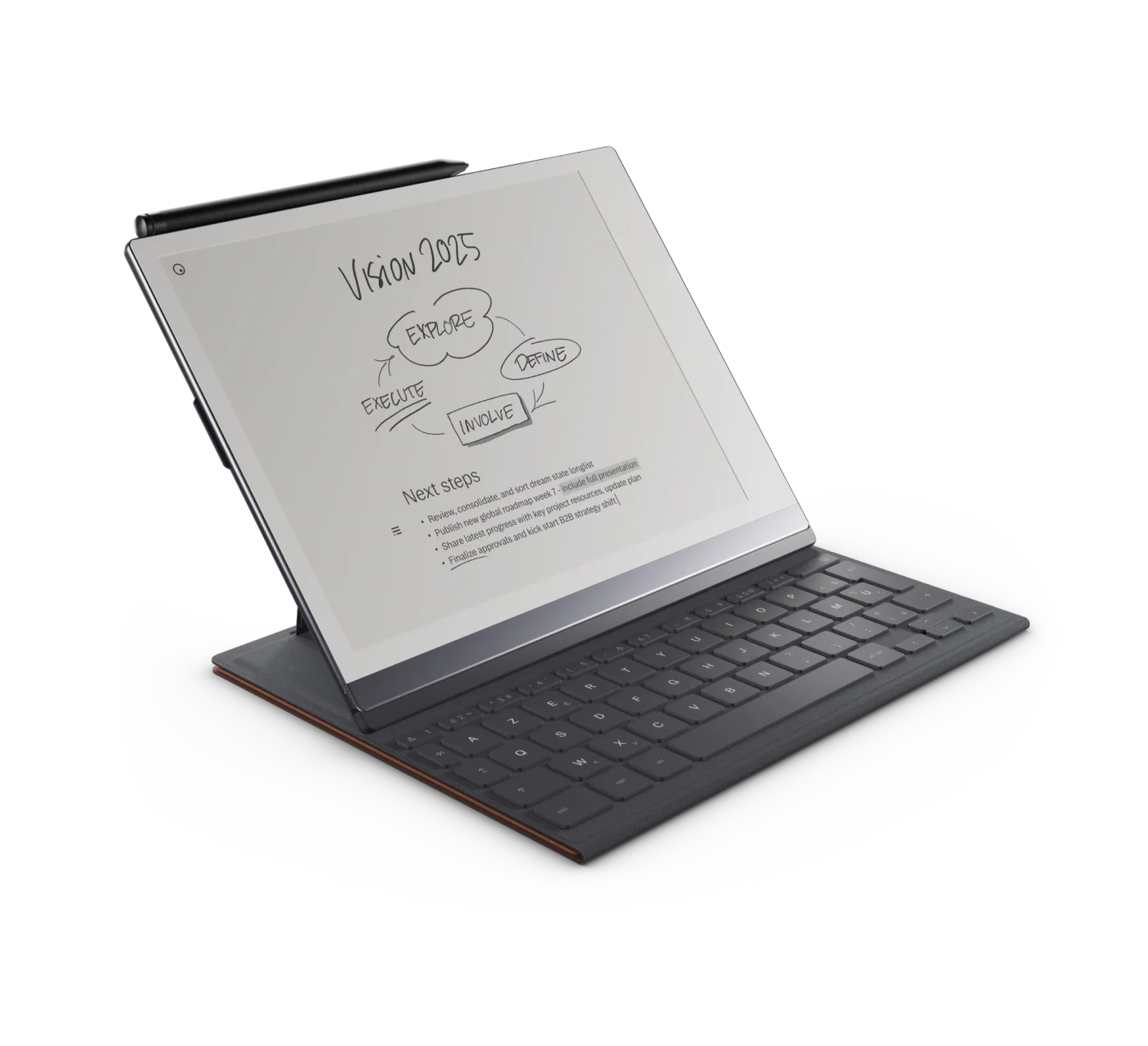
reMarkable 2
Use the Type Folio sold specifically for reMarkable 2. It connects through the magnetic accessory port and should rotate the display when the keyboard opens.
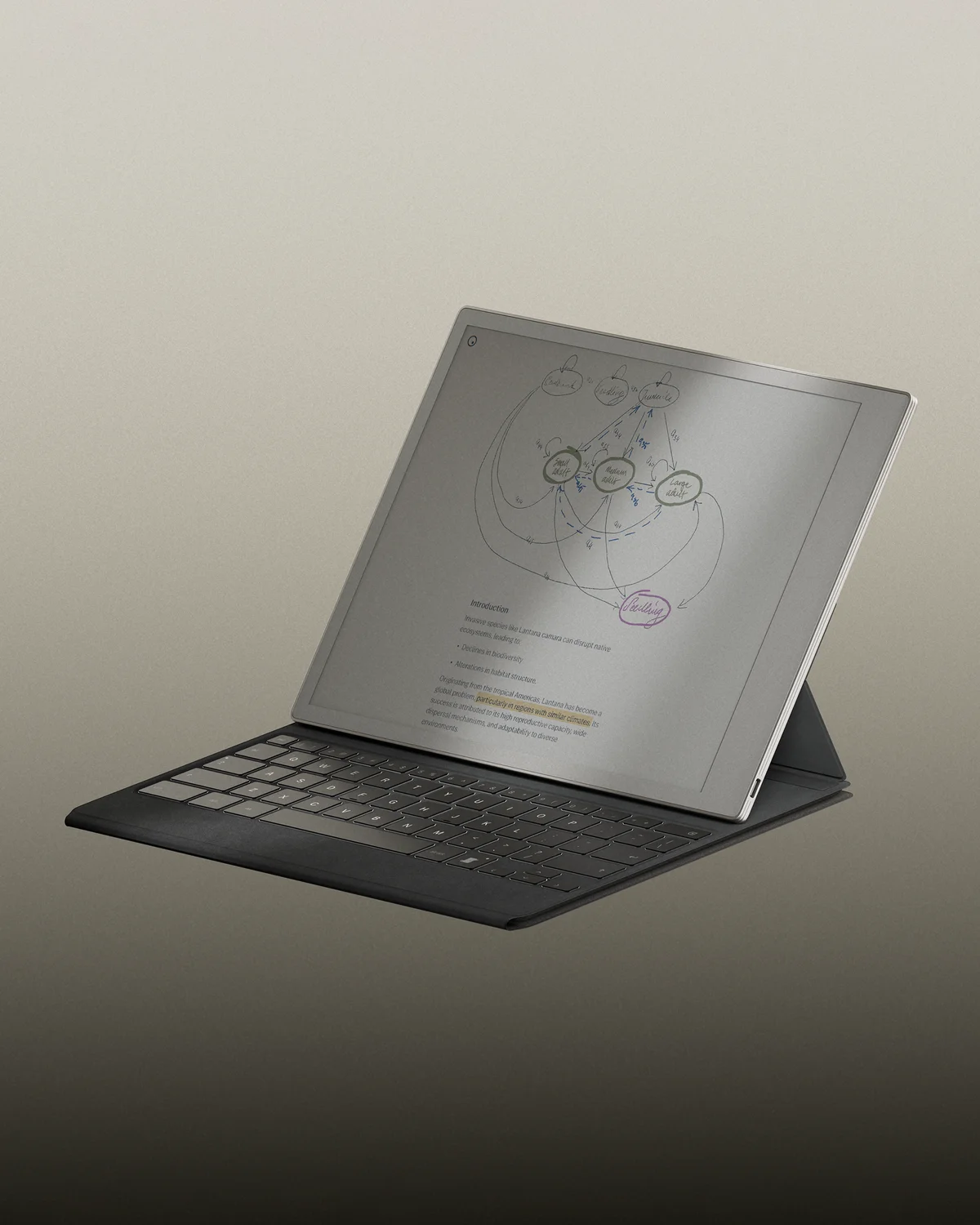
reMarkable Paper Pro
Use the larger Paper Pro Type Folio. Its integrated keyboard is backlit and snaps to Paper Pro with magnets.
Both versions receive their connection through the tablet. A missing Bluetooth entry and the absence of a keyboard charging cable are normal, not clues that the Folio is flat.
SAFE, REVERSIBLE CHECKS
Change one part of the connection at a time
- Protect current work.Close the note you were editing and let the tablet finish syncing if possible. This guide does not require deleting, deregistering or resetting anything.
- Confirm the exact tablet and Folio.Check the tablet name in Settings and the product or order details for the keyboard cover. Do not force a Folio made for another model.
- Remove the tablet normally.Fold the keyboard away, support the tablet with both hands and lift it out of the magnetic cradle. Do not twist the case or lever the connector.
- Inspect the contact area.Look for a case lip, paper scrap or visible dirt preventing the tablet from sitting flat. If needed, power the tablet off and wipe the exterior gently with a clean, dry, lint-free cloth. Keep liquid, sprays and metal tools away from the contacts.
- Attach it again.Align the tablet with the cradle described in the official guide and let it snap firmly into place. Open the keyboard to its normal typing position without squeezing or flexing the joint.
- Test a harmless notebook.Create a blank notebook, select typed text and press several ordinary letter keys. Note whether the display rotates, the typing toolbar appears, or any keypress registers.
- Install an official update.Open Settings → Software → Version → Check for updates. If an update is offered, let the tablet download it and use the normal restart prompt. Do not sideload software from a forum.
- Restart once with the Folio detached.If the tablet is already current, detach Type Folio, restart the tablet normally, wait for the home screen, then attach and repeat the same blank-notebook test.
READ THE PATTERN
The way it fails is more useful than another random fix
Recent owner reports describe complete non-detection, brief disconnections and keyboards that work only when the tablet sits at a particular angle. Other owners report reliable use. These reports establish that the symptom occurs, but not that every case has one cause or that Type Folio has a known failure rate.
After correct attachment, gently place the setup on a stable desk and test without touching the hinge. If the keyboard drops when normal typing pressure or a small position change is applied, film that ordinary movement once. Do not keep bending or pressing the tablet to make the connection return.
WHAT NOT TO TRY
Do not turn a support case into physical damage
Owners sometimes suggest exercising pogo pins with plastic or metal. reMarkable does not publish that as a repair, and it can damage the connector.
Clips, folded paper and permanent pressure can twist the Folio or tablet and hide an intermittent fault rather than fix it.
The Paper Pro user guide warns against solvents, alcohol, aerosol sprays and moisture in openings. Use only a dry exterior wipe here.
A reset risks local data and does not repair worn contacts, a broken keyboard or a failed accessory connection.
If the case is bent, the connector is loose, the keyboard has liquid damage, or the tablet does not sit flat, disconnect it. Do not open the Folio or tablet. Photograph the condition and ask support how to proceed.
WHEN TO ESCALATE
Send one clean test record to reMarkable
Contact reMarkable when the matching Type Folio remains undetected after correct attachment, current software and one normal restart; when it repeatedly disconnects during ordinary desk use; or when one or more keys consistently fail in a new blank notebook.
Include the tablet model, Type Folio model or order, tablet software version, whether opening the keyboard rotates or changes the screen, the exact keys tested, whether the failure changes with ordinary movement, and a short video showing the full setup. Share serial numbers and proof of purchase only in the private support conversation.
reMarkable's current limited warranty covers eligible material or workmanship defects on its accessories for one year from the original retail purchase. It excludes accidental damage, ordinary wear and unapproved modification, among other listed causes. Retailer processes and local consumer rights can differ. Let reMarkable or the seller decide whether the tablet, Folio or both need inspection or replacement.
SOURCES
Official guidance and reporting limits
reMarkable product pages, support material, the Paper Pro user guide and multiple owner reports were checked on October 21, 2026. Owner reports were used to define the symptom and risky community suggestions, not to diagnose every Folio or estimate a failure rate. Yeinks has not reproduced the fault.