
QUICK ANSWER
Measure screen-on use and sleep drain separately.
Restart the Note Air5 C, open Settings > Power > Battery Status, and record the percentage, front-light level, wireless state, app and activity. Use it normally for one hour, then repeat a separate six-to-twelve-hour sleep test after syncing important work.
If active use improves when the light, radios or background apps are reduced, you have found a workload cost. If the tablet still loses a large amount while asleep with Wi-Fi and Bluetooth set to turn off, or it becomes warm while idle, submit logs to BOOX. Do not factory-reset it just to diagnose the battery.
GET A BASELINE
Battery life depends on what the tablet is doing
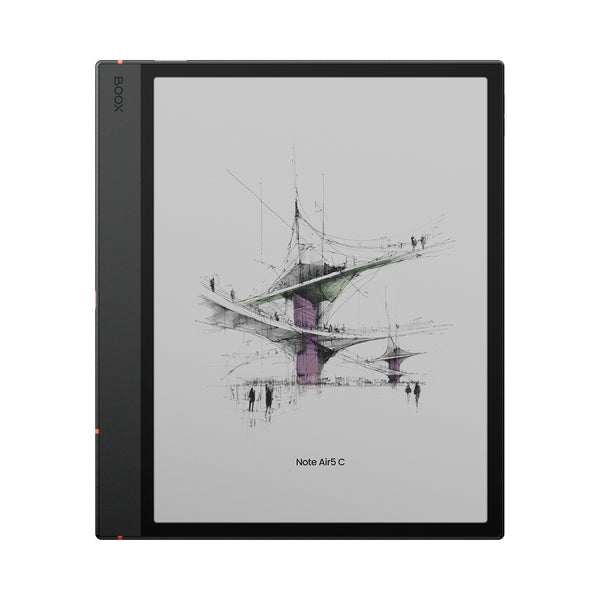
The Note Air5 C has a 3,700mAh battery, a front-lit color E-Ink screen, Android apps and BOOX Super Refresh hardware. BOOX does not publish one useful hours figure for every workload. Recent owner reports range from modest daily drain with little or no front light to a battery lasting only a few hours during mixed writing, browsing and bright-light use. A few owners also report severe drain while the tablet should be asleep. Those reports show why the conditions matter, not how common a fault is.
- Start from a stable charge.Use a known-good USB-C cable and let the percentage settle. You do not need to drain the battery to zero.
- Write down the variables.Record the starting percentage, time, firmware build, front-light level, Wi-Fi and Bluetooth state, refresh mode, open app and what you are doing.
- Keep the hour simple.Choose reading, handwriting or web browsing. Mixing everything together makes the result harder to interpret.
- Repeat only one comparison.Change one likely cause, such as the front light or wireless connection, then repeat the same activity. A one-off percentage movement is less useful than a repeatable difference.
Front light, Wi-Fi, writing, scrolling and Android apps can make this behave more like a tablet than a basic reader.
Check sleep radio settings, auto-start apps, the screensaver and whether the device is actually entering sleep.
Restart once, stop the test if heat continues, and send BOOX a logged report.
Record the percentage and time. Do not try to recalibrate it with repeated deep discharges.
CONFIRMED POWER CONTROLS
Change the settings BOOX says can use more power
- Lower the front light to a comfortable level.BOOX says front-light use increases consumption. The darker Kaleido 3 screen means many people need some light, so the goal is a readable level, not an unusable zero.
- Turn off radios when you do not need them.Wi-Fi and Bluetooth use power. Sync first, then compare a matched hour with them off. Airplane mode is a diagnostic tool, not a good permanent answer if you need cloud services.
- Review app auto-start.In App Management, disable automatic startup for apps that do not need it. BOOX explicitly warns that auto-start increases power consumption.
- Freeze suitable third-party apps.Freeze apps you do not need running in the background. Do not freeze an app that must deliver notifications, finish a download or sync notes. BOOX says freezing prevents background operation.
- Check per-app background settings.In an app's optimization controls, turn off Stay active in the background unless the app genuinely needs it. BOOX says enabling it increases consumption.
- Set a sensible Auto Sleep time.Use Settings > Power so the tablet sleeps after inactivity. Set Auto Power-Off only if a slower cold start suits your workflow.
These changes trade convenience for battery life. Freezing a messaging app can delay notifications, turning off Wi-Fi pauses sync, and auto power-off makes the next start slower. Keep the services you actually need.
SLEEP-DRAIN TEST
Make sure sleep is really quiet
BOOX says sleeping devices use very little power, while third-party apps, the front light and wireless connections can consume more. Current owner reports also show cases where a Note Air5 C lost most of its charge during sleep, which is not the same as shorter battery life during writing or scrolling.
- Sync and save first.Let notes and documents finish syncing. Confirm anything important elsewhere before disabling connectivity.
- Set sleep radios to turn off.Under the Auto Sleep controls, set Wi-Fi and Bluetooth status after sleep to Turn Off where those options are available.
- Avoid a live clock screensaver for the test.BOOX notes that a clock screensaver can prevent automatic shutdown. Use a static screensaver so the comparison is cleaner.
- Record the time and percentage.Press the power button once to sleep the tablet. Leave it untouched for six to twelve hours, then record the change and whether the case feels warm.
- Repeat once after a restart.If the first drop is large, restart and repeat under the same conditions. A recurring result is more useful to support than an estimate from memory.
Power it down and disconnect the charger if it is hot while idle, smells unusual, swells or the case begins to separate. Do not open the tablet or keep cycling the battery. Contact BOOX or the seller.
TENTATIVE TESTS
Two useful comparisons are not guaranteed fixes
Smooth mode is designed for fast scrolling and dynamic apps, while HD mode is intended for books and other static content. BOOX does not promise a specific battery saving from changing refresh mode. Still, a matched reading test in HD can show whether your usual dynamic workload is part of the drain.
Some owners say drain improved after the first few days or charging cycles. That is anecdotal, not a reason to accept severe heat or repeated overnight discharge. Keep the tablet charged while downloads and app updates finish, then measure again.
Do not install battery-cleaner apps, unofficial firmware or random Android tools that demand broad permissions. They add another variable and can create privacy or stability problems. Do not repeatedly discharge to zero in an attempt to “train” the battery.
WHEN TO ESCALATE
Send BOOX a controlled test with logs
Contact BOOX if the Note Air5 C repeatedly loses a large amount in sleep after a restart and the radio checks, if it becomes warm while idle, if the percentage jumps or it powers off unexpectedly, or if the same simple activity suddenly uses much more power after an update.
BOOX's official battery check asks you to enable saving logs before reboot, submit an initial Feedback report, fully charge the device, use it normally until it reaches about 30%, then submit another report with logs. Follow the current steps in BOOX's troubleshooting guide. Include the firmware build, timestamps, starting and ending percentages, app and activity, front-light level, wireless settings and whether the drain happened while awake or asleep.
It removes apps, accounts and local settings, and it may put unsynced work at risk. Back up important notes and files before any reset, and only use it when BOOX support gives a clear reason.
SOURCES
Official guidance and reporting limits
BOOX documentation and the Note Air5 C product page were checked on October 2, 2026. Recent owner discussions were used to identify symptoms and useful comparisons, not to estimate failure rates or promise a result. Yeinks has not reproduced these battery tests on a device.