
QUICK ANSWER
Check BOOX App Freeze before reinstalling anything.
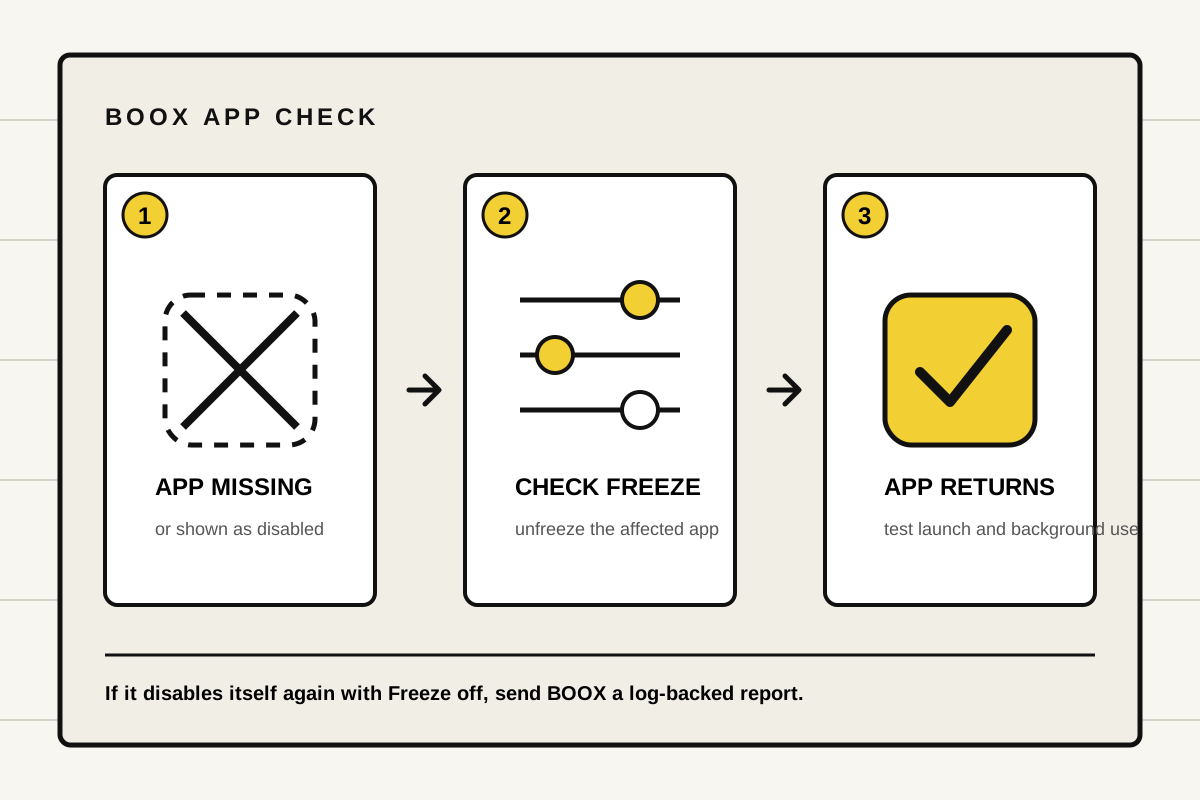
If a BOOX app disappears, Google Play shows an Enable button or notifications suddenly stop, open the BOOX Freeze settings and unfreeze that app. Also turn off automatic freezing for new apps if your device offers it. If the app disables itself again while Freeze is already off, stop changing settings and send BOOX a log-backed Feedback report. Do not factory-reset the device for this symptom.
START WITH REVERSIBLE CHECKS
Unfreeze the affected app
BOOX uses Freeze to reduce background activity and save resources. Its current App Management guide confirms that a frozen app cannot operate in the background, including sending notifications. That makes Freeze the first setting to inspect, but not a diagnosis for every app problem.
- Note the exact symptom.Write down whether the icon vanished, Google Play shows Enable, a widget disappeared, notifications stopped or the app closes while you are using it. These symptoms do not all prove the same cause.
- Open BOOX App Freeze.On some models, go to Settings > Apps & Notifications > Freeze Settings. On others, open the Apps tab, use the snowflake or top-right menu, then choose App Management > App Freeze. BOOX changes labels between interfaces.
- Turn Freeze off for the affected app.Change only the app you are testing. If the screen offers Freeze new apps or a timed Auto Freeze control, disable that automatic rule or choose Do not freeze when you want new apps to stay available.
- Return to the launcher and open the app.If Google Play still shows Enable, use it once, then reopen the app from the BOOX Apps screen. If the app was meant to be a browser, launcher or other default, set that default again after it is available.
- Test the behavior that failed.Leave and reopen the app. For notifications or audio, give it enough time in the background to reproduce the original problem. Do not turn on every background permission at once.
If the app returns and stays available, the Freeze rule was a plausible cause. If nothing changes, the symptom needs a different diagnosis.
READ THE RESULT
Match the next step to what you can see
Check App Freeze first
Owner reports link frozen apps with missing launcher icons. Unfreeze the individual app, then reopen the launcher.
Check App Freeze first
Several owners saw this when BOOX had frozen an installed app. Enable it, then change its Freeze setting so the symptom does not immediately return.
Check Freeze and Auto Start
BOOX confirms that a frozen app cannot work in the background, including sending notifications.
Do not assume Freeze
A crash, blank screen or sign-in error can have another cause. Record the error and report it if the checks here do not fit.
Recent owners have reported the Freeze setting behind disappearing apps, missing widgets and Play Store apps that look disabled. Other owners report the problem returning even after Freeze is off. Treat the setting as a safe first check, not a guaranteed cure or proof that the app itself is healthy.
ONLY IF THE APP NEEDS IT
Allow background use deliberately
A reading app that you open and close manually may not need to run all day. A launcher, messaging app, calendar, audio player or cloud service may need background activity to remain useful. BOOX's App Management page also lists Auto Start Settings. Enable auto start only for the affected app when its job genuinely requires it.
BOOX warns that auto-starting apps can increase power use and slow the device. Change one app, test it, and keep the narrower setting if it works.
If notifications are the only failure, check that Android notifications are allowed for the app as well as confirming it is not frozen. If audio stops or an app closes while actively in use, record when it happens. That is not the same as a frozen app simply losing background access.
Avoid destructive shortcuts
Do not clear app storage, uninstall the app or factory-reset the BOOX until you have confirmed that its local data is backed up and support has given a reason. Those actions can remove downloads, sign-ins, settings or unsynced files. They are not necessary just to inspect Freeze.
WHEN TO STOP
Report an app that disables itself again
If the affected app becomes disabled again while its Freeze switch and automatic freeze rules are off, capture the problem for BOOX. Open Settings > Feedback or FAQ & Feedback. In its settings, enable saving logs before reboot, reproduce the issue once, then submit Feedback with the log option selected. BOOX's customer-service guide explains the official software-support route.
Include the BOOX model, full firmware build, app name and version, the exact Freeze settings you checked, when the app changed state and whether it happened after a restart or update. Add screenshots of the disabled app or missing icon. Share serial numbers only through official support channels.
Do not assume that a promised update will fix the fault, and do not install unofficial firmware. If the problem affects only one app, also check that app's current Android requirements and support page. A BOOX setting cannot repair an app that no longer supports the device's Android version.
EVIDENCE AND LIMITS
What this guide can establish
BOOX's current App Management and customer-service documentation was checked on September 27, 2026. Recent owner reports across BOOX devices were used as symptom signals, not as a failure-rate estimate. Yeinks has not reproduced this fault on a device. The Freeze check is confirmed by BOOX documentation; recurrence with Freeze off needs an individual software assessment.