
QUICK ANSWER
A missing update can be normal during a rollout.
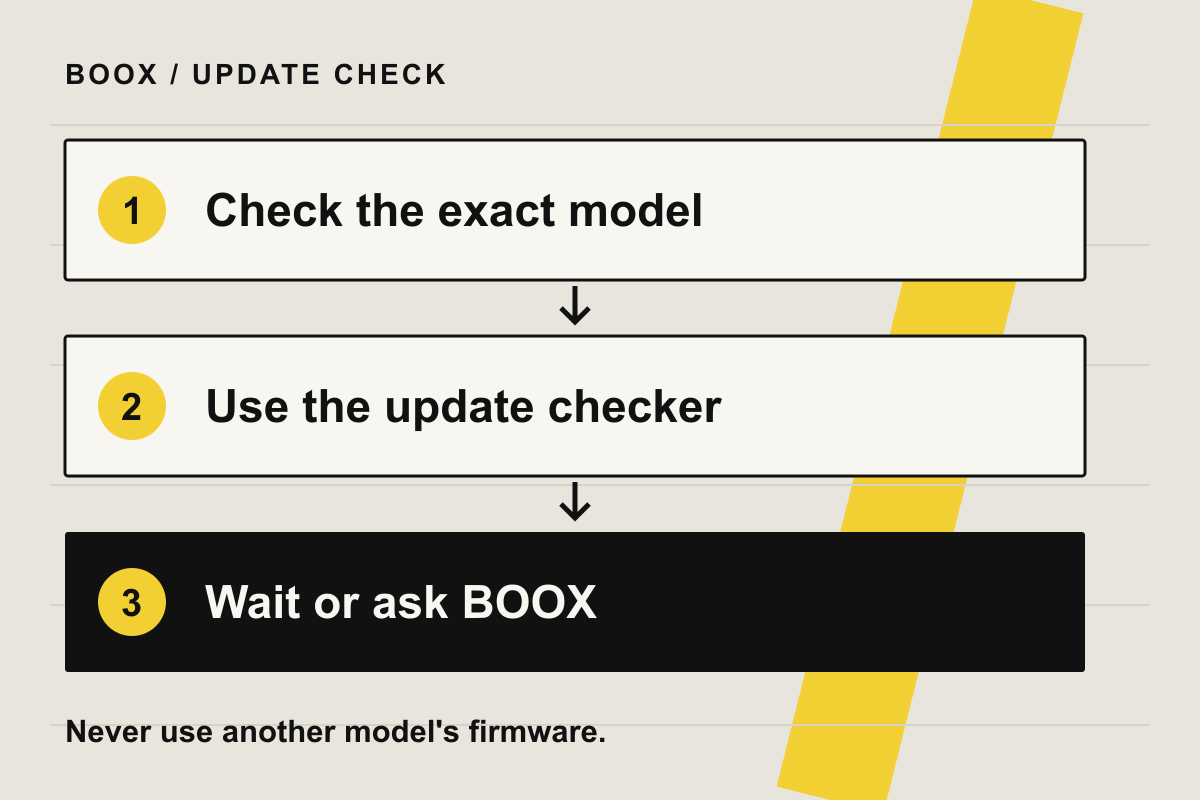
If a BOOX firmware update is not showing, first check the exact model and run the built-in update check on Wi-Fi. BOOX releases firmware in batches, and timing differs between models. If nothing is offered, wait and check again later, or ask BOOX through Feedback. A factory reset is not a sensible way to join a rollout.
START HERE
Check without changing your firmware
These checks apply to the BOOX notebooks listed on this page, including Note Air5 C, Note Air4 C, Go 10.3 (Gen II) and Note Max. They do not establish which release each device should receive today.
- Write down your exact model and installed build.Use the device information in Settings. Keep the full build string, not just a headline version such as 4.2. A similar product name or matching screen size does not make two models interchangeable.
- Check the announcement you are comparing against.Does it name your model? Is it an available release, a beta or a preview of future features? BOOX's firmware page says features can differ by model and directs readers to their device's changelog. It is not a live availability check for your individual tablet.
- Use the built-in update checker.Connect to Wi-Fi, then look for Settings > System Updates > Check for updates. BOOX's other user guide calls the menu Firmware Update; wording varies. Follow the official update instructions for the menu you have.
- If the check errors, test the connection.Try loading a normal web page on the BOOX. If that fails too, resolve the connection first. A normal restart or a different trusted Wi-Fi connection is a reasonable diagnostic check, not a confirmed way to unlock an update. Only do this while no installation is running.
Change one thing at a time. Write down whether the result is “no update,” a connection error or a failed download. That gives support something more useful than “updates don't work.”
READ THE RESULT
No update and a failed update need different responses
Check model and rollout
An announcement for another model is not evidence that your tablet should already have the same build.
Recheck later, then ask
Record what was offered and when. A missing offer does not tell you why it vanished.
Record the exact error
This is a different symptom from no update being offered. Note whether it fails on another trusted connection.
Let it finish
Do not apply the restart or network tests below while firmware is being installed.
BOOX's rollout guidance confirms batches and differing model priority. It does not give a guaranteed waiting period. Rechecking on another day is a practical next step, not a promise that the update will appear tomorrow.
If you need a specific bug fixed, tell support about that bug as well as the missing update. An update number alone cannot tell you whether the fix you need is included. Ask for confirmation for your model and build.
BEFORE CHANGING ANYTHING
Do not borrow another model's firmware
BOOX explicitly warns against mixing packages between models. A download linked in a forum, or an update from a newer tablet, is not a safe shortcut.
BOOX documents local installation using an update.upx file. That does not mean a suitable download exists for every current model. Use this route only when BOOX provides or confirms the exact package for your device, then follow its instructions. If the model match is unclear, stop and ask.
Before any installation, back up important files and verify the copies open. Read the release-specific instructions and keep the device connected to power. BOOX also advises syncing notes again afterward. Our BOOX file-transfer guide explains available transfer routes; check that exported notes and source documents are both saved where you need them.
A factory reset erases stored personal files. It is not part of this checklist. Do not reset or attempt an unofficial firmware change merely because a newer version appears in someone else's screenshot.
WHEN TO STOP
Ask BOOX to confirm availability
Use Settings > Feedback, tap + and send your request. BOOX recommends this route for software questions in its customer-service guide. If you cannot reach Feedback, use the BOOX Help Center.
Include the exact model, full installed build, the release you expected, the update-check result and the date you last tried. Add a screenshot of any error. Mention whether ordinary internet access works and whether another trusted network changed the result. Share serial numbers only through official support channels.
Ask two direct questions: “Has this release reached my model?” and “Is waiting the right next step, or is there an official package for my device?” Stop experimenting if installation repeatedly fails or the tablet no longer starts normally. Those symptoms need a specific support assessment.
EVIDENCE AND LIMITS
What this advice can establish
Official BOOX rollout, update and support documentation was checked on September 22, 2026 and is linked beside the relevant steps. Yeinks has not tested an affected device or verified an individual tablet's update eligibility. Connection checks are diagnostic suggestions; waiting and Feedback are BOOX's documented routes for a missing release. Neither guarantees an immediate update.