
QUICK ANSWER
Do not factory-reset a reMarkable just because another screen looks stale.
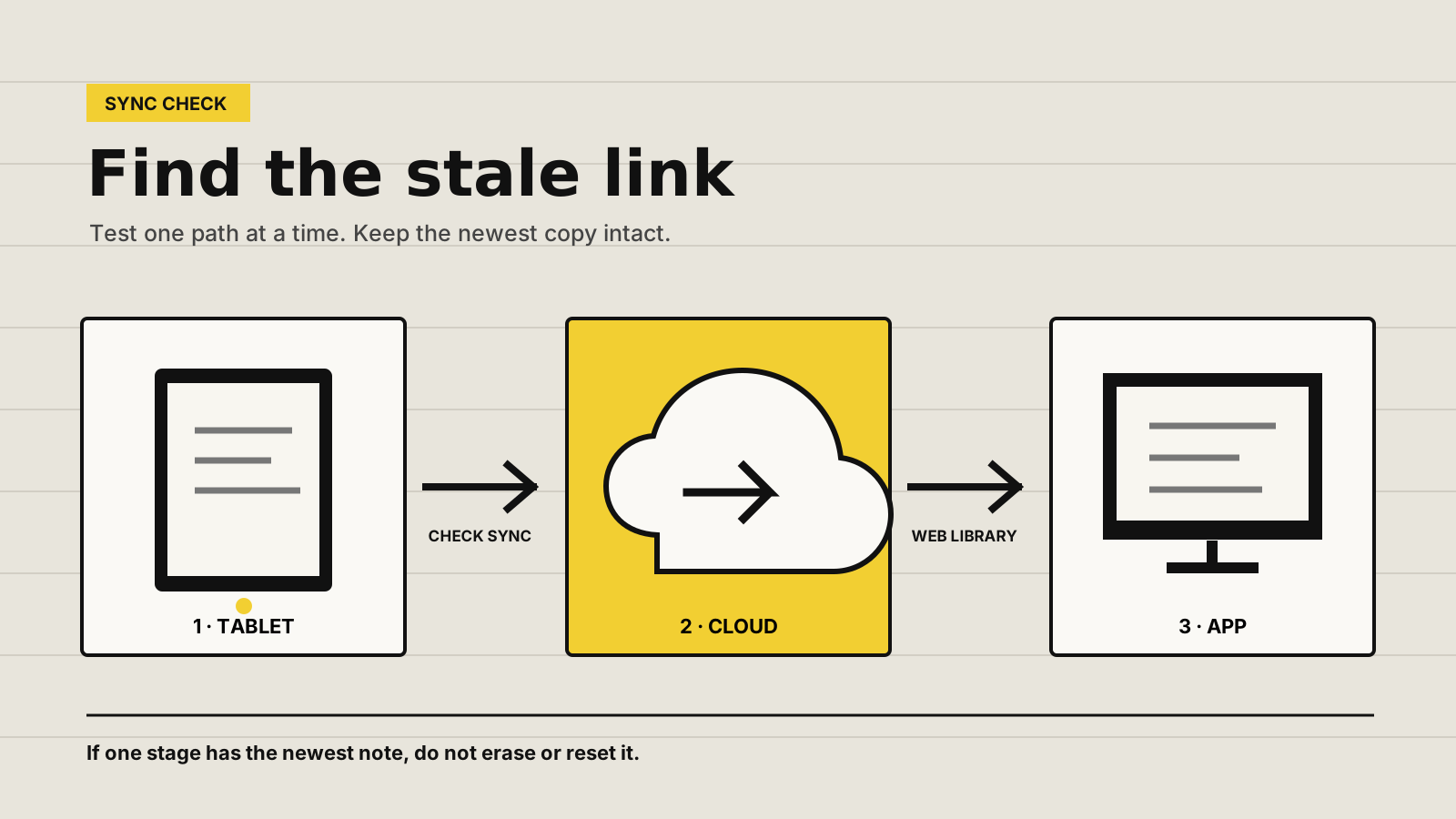
First, stop editing the affected notebook on other devices. On the tablet, open Menu > Settings > Cloud > Check sync. Then sign in to the reMarkable web library and compare one recent notebook, its page count and a distinctive final line.
If the web copy is current but the mobile or desktop app is not, treat the app as the problem. If the web copy is also old, keep the tablet copy intact and work through Wi-Fi, software and account checks. A reset can remove the only current copy without repairing an outage or app problem.
FIRST, PROTECT THE NOTE
Find which surface holds the newest version
Owner reports describe several different symptoms under the same phrase: an app that stays behind, a tablet that cannot reach the cloud, files marked Not syncing after long inactivity, and conflicting edits made on two tablets before both caught up. These reports do not show how common the problem is, but they do show why the order matters.
- Stop simultaneous editing.Close the notebook on other reMarkable tablets and companion apps until you know which copy is newest.
- Record the good copy.Note the notebook name, page count, last visible edit and the device or app where it appears. Photograph important pages if no safe export is available.
- Export only from the newest surface.If the current copy can be exported as PDF, open the PDF and confirm the last page. It is a readable safety copy, not a fully editable reMarkable backup.
Individual page deletion can be permanent, and a local change cannot be restored from the cloud if it never uploaded. Keep the surface with the newest version untouched while you diagnose the path.
FIND THE STALE LINK
Use one test notebook to locate the failure
- Run Check sync on the tablet.Open Menu, Settings, Cloud and Check sync. Save the exact result. A successful check means the tablet can currently reach the reMarkable cloud, not that every app has already refreshed.
- Compare the web library.Sign in at my.remarkable.com and open My files. Check one recent notebook and one older file. Do not use a different Google or email sign-in by accident.
- Create one harmless test.Make a small notebook or folder with a unique name on the tablet, then run Check sync once. See whether it reaches the web library and the companion app.
- Check the account on both ends.On the tablet, use Settings > General > Account. In the app, open its account menu. Confirm the exact same reMarkable account.
Try a compatible hotspot, update the tablet and record the exact error before changing any account pairing.
Keep the tablet paired. Update or restart the stale app and confirm that it uses the same account.
Protect the tablet copy. Do not reset, unpair or delete the notebook while it may be the newest copy.
Without Connect, open the file on the tablet so it can sync again. This is different from a general cloud failure.
TRY THIS IN ORDER
Start with fixes that do not disturb stored notes
- Update the tablet and companion app.On the tablet, open Settings > Software and check for an update. Update the mobile or desktop app through its normal store or installer. If several reMarkable tablets share the account, reMarkable says all should run the newest software.
- Restart normally.Restart the tablet from its power menu, then restart the phone or computer. Reopen only one companion app for the next test.
- Try a compatible mobile hotspot.This separates the tablet from a home, work or campus network. On an iPhone, enable Maximize Compatibility. On Android, reMarkable recommends WPA2 and a compatible band. Avoid special characters in the hotspot name and password.
- If the hotspot works, check the original network.Captive portals, certificate logins, VPNs, router security, Wi-Fi bands and channels can block or destabilize sync. A hotel sign-in page cannot be completed on the tablet.
- If only the app is stale, refresh that app.Update it, restart the host device and test another network. reMarkable's official mobile guidance allows reinstalling or re-pairing the app, but do this only after the web library proves the cloud copy is complete.
Owners sometimes find that fully closing and reopening a mobile app, or switching that phone between Wi-Fi and mobile data, clears an app-only stall. This is not a confirmed cure. It is safe to try after the tablet and web library are known to be current.
NOT ALWAYS A FAILURE
Not syncing can mean the no-Connect 50-day limit
reMarkable says people without an active Connect subscription can still use cloud sync, but a document stops syncing to the mobile and desktop apps after it has not been opened and synced for more than 50 days. The file remains on the tablet.
If only older files carry the label while new work syncs normally, open the affected file on the tablet while it is online, make sure it completes a sync, then check the apps again. Do not confuse this rule with Google Drive, Dropbox or OneDrive integrations. Those are separate import and export routes, not an automatic mirror of every notebook.
WHEN TO ESCALATE
Contact reMarkable before the newest copy is disturbed
Contact support when Check sync keeps returning an error on more than one compatible network, when a fresh test notebook never reaches the web library, when the web library and tablet disagree after updates and restarts, or when pages have disappeared.
Give support the tablet model, software version, companion app and operating-system versions, exact account email, time of the last successful sync, test-notebook name, results on the web library and hotspot, and the full error wording. Say clearly which device still has the newest note and ask whether the cloud copy is complete before unpairing or resetting anything.
SOURCES
Official guidance and reporting limits
Steps were checked on September 30, 2026 against reMarkable's current support material. Recent owner discussions were used to identify symptoms, data-loss risks and confusing edge cases, not to estimate a failure rate. Yeinks has not reproduced this sync problem on a device.