
QUICK ANSWER
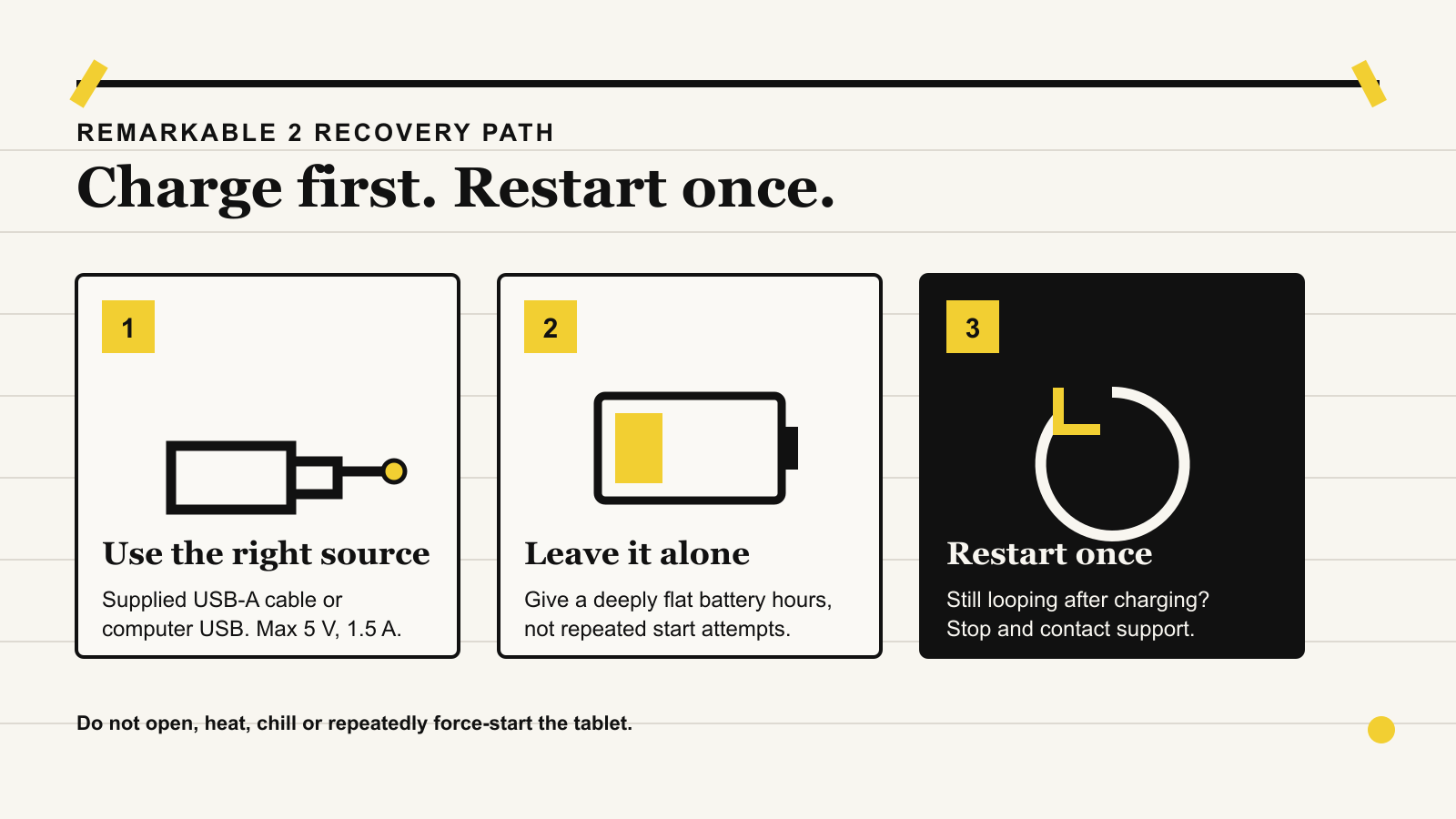
Charge it from a computer USB port before trying another restart.
Use the supplied USB-A to USB-C cable, or another known-good cable, and connect the reMarkable 2 directly to a computer USB port. reMarkable specifies a maximum input of 5 V and 1.5 A for this model. Leave it connected without repeatedly pressing power. A deeply discharged battery can need several hours before the screen catches up.
If the tablet still alternates between Paper tablet is starting and Paper tablet is out of battery, try one forced restart while it remains connected: hold power for at least 10 seconds, wait five seconds, then hold power for two seconds. If it still does not start after an extended charge, contact support. Do not open the tablet or attempt a battery replacement yourself.
CHECK THE SYMPTOM
A stale E-Ink screen can make a flat tablet look more final than it is
An E-Ink panel keeps its last image without continuous power. That means the out-of-battery or starting message may remain visible while the tablet is off, and the picture alone does not prove that charging has failed.
Look for changes after you connect power: a brief screen flash, a charging symbol, a different message, or the tablet trying to boot. Also inspect the USB-C port and cable for bent metal, debris, looseness, scorching or unusual heat. Stop immediately if you see damage, smell burning, or notice the tablet swelling.
SAFE RECOVERY ORDER
Change one part at a time and give the battery time
- Disconnect accessories.Remove the Marker and folio so you can inspect the tablet and cable clearly. Do not place it on another magnetic cover while diagnosing the fault.
- Use the supplied charging cable first.reMarkable 2 shipped with a USB-A to USB-C cable. If it is unavailable, use a known-good data-capable cable with no visible damage.
- Connect directly to an awake computer.Use a built-in USB port, not an unpowered hub. Keep the computer awake so it continues supplying power. This stays within reMarkable's documented 5 V, 1.5 A maximum.
- Leave it connected for at least four hours.Do not keep pressing the power button while it charges. Recent owners report that deeply drained units sometimes need a computer USB port or an older 5 V source and several uninterrupted hours. That is a recurring workaround, not an official guarantee.
- Try one forced restart.While still connected, hold power for at least 10 seconds. Wait five seconds, then hold power for two seconds. If it starts, leave it connected until the charge rises steadily.
- Repeat with one known-good cable or compliant source.If there was no change, swap only the cable or use another source whose label confirms 5 V output no higher than 1.5 A. Then leave it alone again. Do not cycle through random fast chargers.
Owner reports repeatedly describe computer USB or basic 5 V charging reviving a deeply flat reMarkable 2. This pattern is useful, but it does not prove why an individual tablet failed or rule out an aging battery, damaged cable or worn USB-C port.
READ THE RESULT
The next step depends on what changes
Leave it connected until it has a useful reserve, then let cloud sync finish before normal use.
Try the supplied cable and a second known-good USB port. Stop if the port or cable becomes hot.
Stop pressing power. Give it a longer uninterrupted charge, then try the forced restart once.
Treat this as a possible cable, port or battery fault and contact reMarkable support.
If the tablet starts, open Menu > Settings > Battery and check that the percentage rises while connected. Let it charge before installing updates or opening large documents. Then run a cloud sync and confirm one recent notebook appears in a reMarkable companion app.
If it starts only when plugged in, shuts down at a reported charge above zero, or falls rapidly while idle, the problem is no longer just the startup loop. Record those symptoms for support because they can point to battery aging or a charging fault.
AVOID RISKY SHORTCUTS
Do not turn a charging problem into a damaged tablet
- Do not open the reMarkable 2. Its sealed battery should be handled by qualified service personnel.
- Do not heat, chill, bend or press the tablet. A lithium-ion battery that is swollen, unusually hot or damaged needs professional handling.
- Do not repeatedly force-start it. Each boot attempt uses the small amount of energy the battery has gained.
- Do not factory-reset it. A reset erases local data and does not repair a cable, charging port or worn battery.
- Do not assume a charger is safe because the connector fits. Read the output label and stay within the manufacturer's maximum for reMarkable 2.
Once the tablet is working again, avoid storing it empty for months. Power it off for long storage and give it a periodic charge. That will not reverse battery wear, but it reduces the chance of finding it deeply discharged next time.
WHEN TO STOP
Contact reMarkable when the safe sequence produces no lasting change
Use the official support site if the tablet remains blank or loops after an extended compliant charge, if more than one known-good cable fails, or if the connector feels loose. Escalate immediately for swelling, liquid exposure, impact damage, scorching or unusual heat.
Tell support the exact model, how long it had been unused, the messages shown, the cable and power-source labels, how long each charge was left uninterrupted, and the result of the forced restart. A short video of the loop can be more useful than another reset attempt. Keep serial numbers and proof of purchase in the private support conversation.
EVIDENCE AND LIMITS
What is confirmed, and what remains a workaround
Yeinks checked the following sources on September 24, 2026. We have not reproduced this fault on a reMarkable 2. reMarkable confirms the model's charging specification, supplied cable type and support route. The long uninterrupted charge and preference for a simple computer USB source are supported by multiple owner reports, including recent 2026 cases, but reMarkable does not publicly guarantee that they will revive every deeply discharged unit.
- reMarkable: reMarkable 2 specifications and charging recommendation ↗
- reMarkable: product status, warranty and continued software support ↗
- reMarkable: supplied USB-A to USB-C cable ↗
- Owner report: recovery after support advised computer charging ↗
- Owner discussion: September 2026 no-power troubleshooting ↗