
QUICK ANSWER
Separate a pen fault from a screen fault before resetting anything.
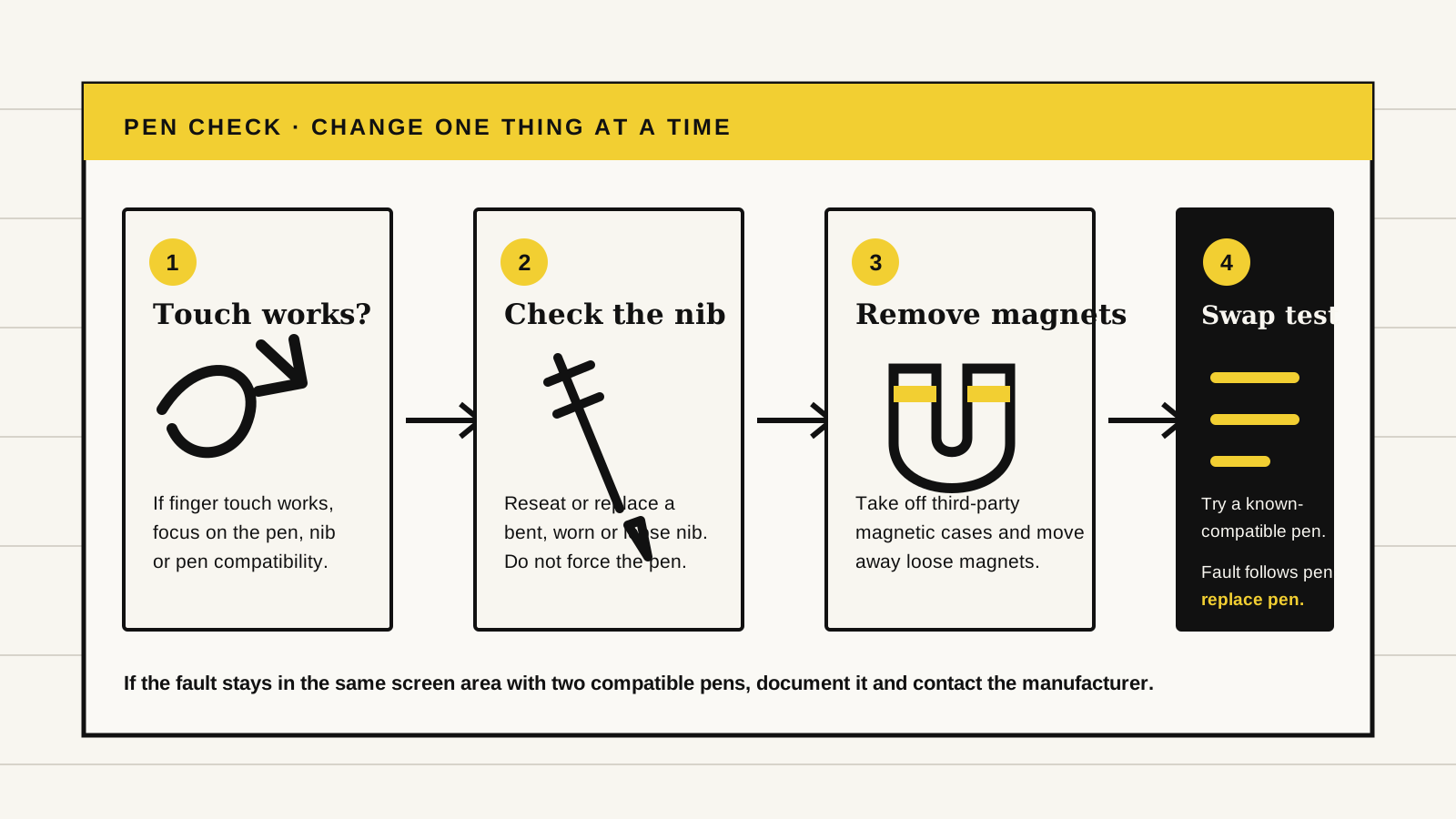
Open a fresh notebook, check whether ordinary finger touch still works, remove any third-party magnetic case, then inspect and reseat the nib. If the pen is still dead, try a second pen that is confirmed compatible with your exact model.
If the problem follows the first pen, replace its nib and then the pen. If two compatible pens fail in the same part of the screen, photograph or film that area and contact the manufacturer. A factory reset does not repair a bent nib, incompatible stylus or damaged pen sensor.
FIVE-MINUTE CHECK
Start with the tests that do not put notes or hardware at risk
- Use a fresh notebook in the built-in notes app.Some books, PDFs and third-party apps do not accept handwriting everywhere. A blank native note removes that uncertainty.
- Test finger touch.Open a menu, turn a page or tap a toolbar button. If touch is also dead, this is broader than a pen problem. Restart normally and contact support if both inputs remain unavailable.
- Inspect the nib in good light.Look for a bent, mushroomed, chipped or loose tip. Reseat it only as the manufacturer directs. Replace it with the correct nib if you have one.
- Remove magnetic accessories.Take the tablet out of third-party cases, move loose magnets away and retest on a plain surface. Amazon specifically warns that magnetic third-party Scribe cases can interfere with writing areas.
- Restart once.Use the normal power-menu restart. Do not repeatedly force-restart a device that is otherwise responsive.
- Try one known-compatible pen.Compatibility matters. reMarkable 2 Markers do not work on Paper Pro models, and a pen sold for one BOOX model should not be assumed to work with another.
Owner posts sometimes recommend tapping or dropping a pen to free a stuck sensor. That can turn an intermittent fault into physical damage and may affect warranty support. Do not press harder on the display, pull a ceramic nib without model-specific instructions or factory-reset the tablet as a first test.
READ THE PATTERN
The location of the failure matters more than the brand name
The display is awake. Concentrate on the nib, pen, compatibility and pen-input layer.
The first pen or its nib is the likely fault. Replace the nib first, then the pen if needed.
Remove magnetic accessories. If the dead area stays put, document a tablet-side fault.
A damaged, loose or stuck nib is the first suspect. Stop pressing harder and replace or recalibrate as the maker directs.
Test slow lines across the top, middle, edges and corners of a blank page. Repeat with the tablet rotated if the software supports rotation. A gap that moves with the pen points to the pen. A gap that stays in the same physical screen area with two compatible pens points to the tablet, a nearby magnet or the digitizer layer that senses the stylus.
Recent owner reports across reMarkable, Supernote and BOOX describe both completely unresponsive pens and pens that write while hovering above the display. Those reports show that the symptoms recur, but they do not establish a single cause or a failure rate. The swap test is more useful than assuming that someone else's cure fits your hardware.
OFFICIAL STEPS
Use the remedy that matches your pen system
Change the writing context, then the tip
Amazon recommends choosing another writing tool, turning the page, and closing and reopening the book, notebook or sticky note. If the pen writes without touching or the tip is damaged, replace the tip. Remove a magnetic third-party case before testing. Restart if the button or pen remains unresponsive.
Use touch and a second pen to isolate the fault
BOOX says that working finger touch points toward the pen or nib. Inspect the tip, then try another compatible stylus. If a second pen also fails, check whether the capacitive-touch and electromagnetic-touch version fields are blank or unknown under the model or About Device screen, then send that evidence to support.
Calibrate non-contact writing
For a pen that writes above the screen, use Settings > Display & Input > Stylus > Calibration > Non-Contact Writing and follow the on-screen test. Apply the result. Supernote also publishes pen-specific cleaning and reseating steps, so do not use the HOM 2 procedure on a LAMY or another pen.
Confirm the Marker generation
Replace a blunt or damaged tip with the correct official type. reMarkable confirms that its reMarkable 2 Marker uses EMR and is not compatible with Paper Pro. Paper Pro, Paper Pro Move and Paper Pure use their own Marker and tip family. A pen from the wrong generation failing to write is expected, not a screen fault.
TENTATIVE WORKAROUNDS
Useful community checks need careful labels
Owners sometimes report that reseating a nib, removing a magnetic folio, changing the pen angle or leaving the tablet asleep for a few minutes restores input. The first two have support in manufacturer guidance. The others are harmless observations, not confirmed repairs.
If a pen works only when held at an unusual angle, needs increasing pressure or repeatedly starts writing in mid-air, stop using it on important notes. Continuing to press harder can scratch a worn surface or hide a pen that is failing intermittently. Export important notes while input still works, then arrange a replacement or support diagnosis.
Correct writing area, touch test, correct nib, case removed, normal restart and a known-compatible pen.
No factory reset, unofficial firmware, magnet rubbing, impact, pen disassembly or screen pressure is needed to isolate this fault.
WHEN TO ESCALATE
Show support whether the problem follows the pen or the screen
Contact the manufacturer when two compatible pens fail in the same screen area, when both finger and pen input stop, when official calibration does not stop hover writing, or when the screen has a crack, line, pressure mark or swollen area. Stop immediately after liquid exposure, impact damage or unusual heat.
Send the exact tablet model, software version, pen model, nib type, case used and when the symptom began. A short video should show a fresh notebook, finger touch, slow lines across the screen and the same test with the second pen. Mention any drop or pressure event honestly. Keep serial numbers and purchase records inside the private support conversation.
SOURCES
Official guidance and reporting limits
Steps and compatibility details were checked on September 26, 2026. Recent Reddit reports were used to identify recurring symptoms and unsafe folk remedies, not to estimate a failure rate. Yeinks has not reproduced every fault on every listed device.