Menu
DRAWING GUIDE

Are E-Ink tablets good for drawing and sketching?

Yes, if you want a calm digital sketchbook for line art, thumbnails and early concepts. No, if you need vivid color, large layered canvases or the complete toolset of an iPad or graphics tablet.

By Yeinks9 min read
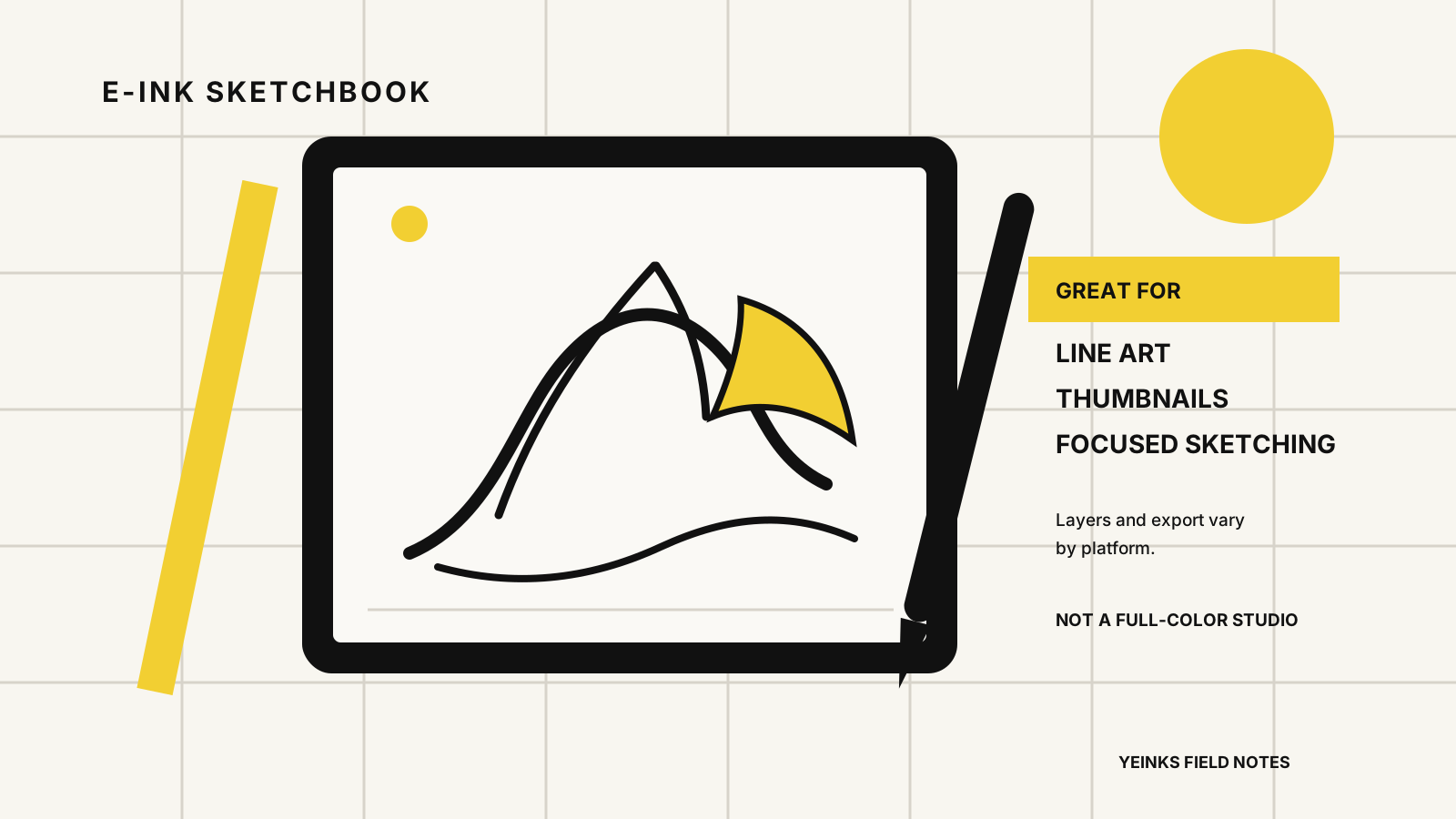
E-Ink tablet drawing guide showing line art, a stylus and notes about sketching, layers, export and limited studio tools
E-Ink works best as a focused sketchbook and draft stage. Illustration: Yeinks.

THE SHORT ANSWER

E-Ink is a convincing sketchbook, not a complete art studio.

E-Ink tablets are good for drawing when the job is to catch an idea, build clean line art or make a thoughtful monochrome study. The reflective screen stays readable in bright ambient light, the stylus can respond to pressure and tilt, and the limited interface can help you stay with the page.

The limits arrive when you need accurate color, many layers, fast transformations, large brushes or specialist apps. Current color E-Ink can add useful hues, but it still shows a smaller, softer-looking palette than a modern LCD or OLED tablet. Buy one for the paper-like workflow, not because it has replaced Photoshop, Procreate or a pen display.

HOW THIS GUIDE WAS MADE

We compared documented tools, not how the screens feel under a pen.

Yeinks checked current manufacturer support pages on October 15, 2026. We did not run a new side-by-side drawing test for this article. Brush feel, latency and surface texture need hands-on comparison, so this guide stays with verifiable tools, display limits, export routes and the jobs each platform is built to do.

AT A GLANCE

What E-Ink drawing is actually good at

Drawing jobE-Ink fitWhy
Quick sketches and thumbnailsExcellentFast, focused and easy to carry
Black-and-white line artVery goodCrisp lines, pressure-sensitive tools and few distractions
Shaded pencil studiesGoodStrong on capable apps, but brush behavior varies by device
Color conceptsUseful with limitsMuted palettes can plan an idea, not prove final color
Painting and photo editingPoor fitLimited color, slower redraws and fewer professional apps
Final print or client artworkUsually a draft stageExport early and finish in desktop or tablet software

WHY IT WORKS

The restrictions can be part of the appeal.

01

It keeps the page quiet

A dedicated drawing or notebook app has fewer palettes, panels and notifications than a general-purpose tablet. That is limiting for production work, but useful when you are trying to explore a shape instead of managing an interface.

02

Line work suits the display

Black strokes and grayscale shading play to E-Ink's strengths. Supernote's Atelier includes several pencil grades, five ink brushes, markers and spray tools. reMarkable offers pressure and tilt-sensitive pencil tools, paintbrushes and a Shader on Paper Pro.

03

Layers make drafts repairable

Supernote Atelier supports up to five layers. BOOX says its Notes app can add up to five layers alongside the template layer. reMarkable notebooks also let you add, hide, delete and merge layers. These are useful working layers, although they are a smaller system than a desktop art app.

04

A draft can leave the tablet

Export matters more than a long brush list. Supernote describes Atelier as a concept stage that feeds professional software. BOOX exports native notes to PNG or PDF as well as its own note format. Check the exact output you need before committing to a device.

THE REAL LIMIT

Color E-Ink is color, but it is not a calibrated canvas.

E Ink says Kaleido 3 panels show 4,096 colors, with 300ppi resolution for black and white and 150ppi for color. That is plenty for diagrams, restrained concepts and visual notes. It is not the wide, bright palette artists expect from an iPad or professional monitor.

reMarkable Paper Pro uses a different Gallery-based color system and provides several drawing colors plus blending with its Shader tool. Kindle Scribe Colorsoft also adds a color palette and translucent Shader strokes. Both can make a sketch more expressive, but the final color decision should still happen on a display suited to accurate color work.

CHOOSING A PLATFORM

Four ways to draw on a current E-Ink tablet

PlatformDocumented drawing toolsBest fit
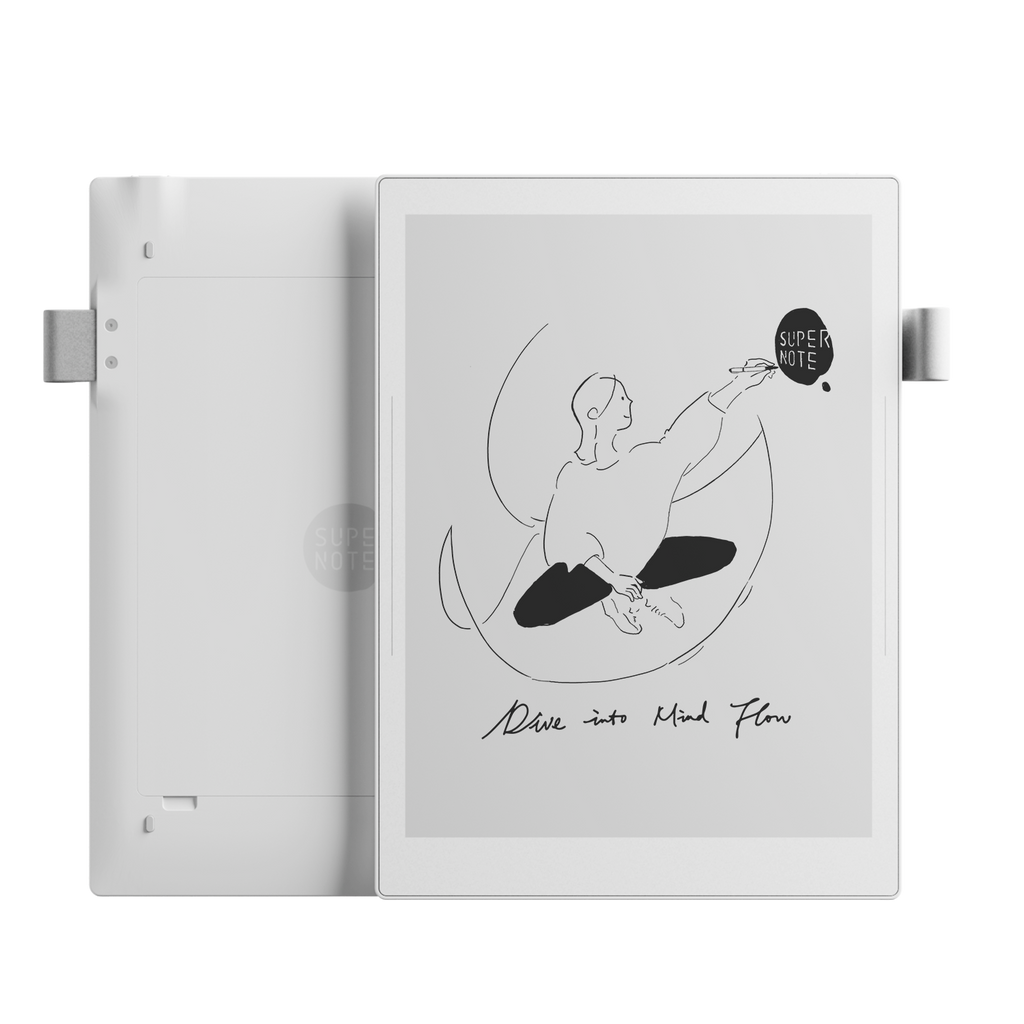
Supernote Manta or NomadAtelier has purpose-built pencils, ink, markers, spray, selections, five layers and zoomFocused monochrome drawing and concept work
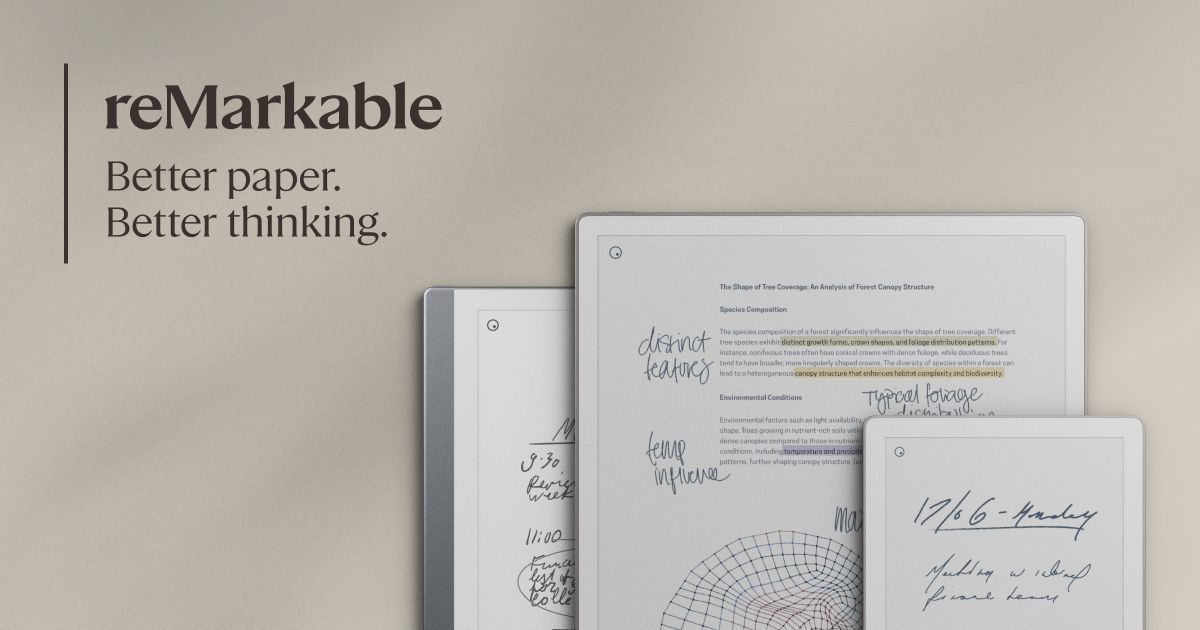
reMarkable Paper ProPressure and tilt tools, color, Shader and notebook layers in a simple interfaceLow-distraction sketching with restrained color
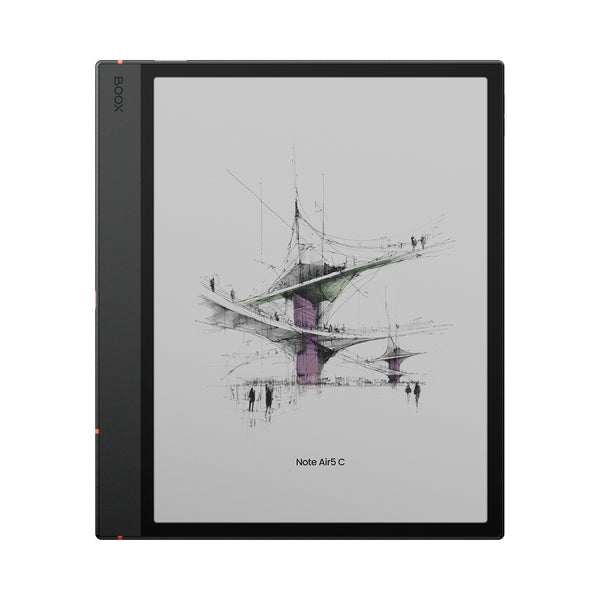
BOOX pen tabletsSeven native brushes, pressure sensitivity, shapes, fill, up to five added layers and PNG/PDF exportPeople who want more tools or Android flexibility
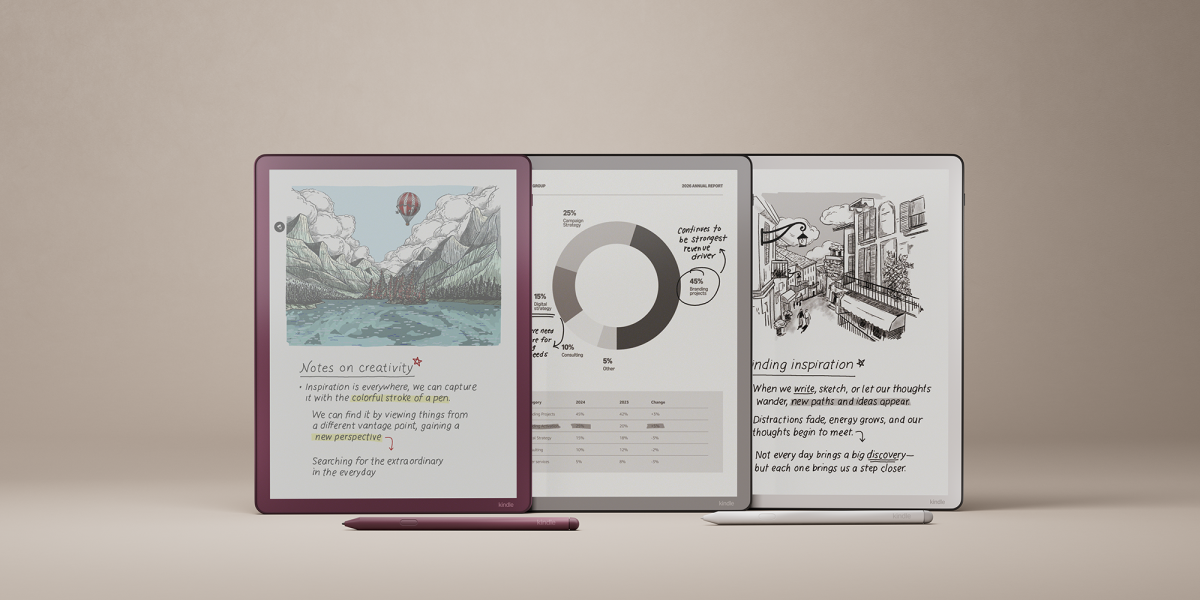
Kindle Scribe familyPen, highlighter, eraser, lasso and simple notebooks; Colorsoft adds color and a Shader penCasual doodles alongside reading, not an art-first workflow
Official image of the Supernote Manta
Supernote's Atelier is the most explicitly art-focused tool in this group. Official image: Supernote.
Official image of the reMarkable Paper Pro
Paper Pro adds restrained color and a Shader tool to reMarkable's focused notebook. Official image: reMarkable.
Official image of the BOOX Note Air5 C
BOOX combines capable native notes with a broader Android environment. Official image: BOOX.
Official image of the current Kindle Scribe family
Kindle Scribe is the simplest option for sketches that live beside books and notes. Official image: Amazon.

BEFORE YOU BUY

Run this five-question drawing check

  1. Is the final work mostly monochrome? If yes, E-Ink's clearest strength lines up with your job.
  2. How many working layers do you need? Five can be plenty for a sketch and cramped for a finished illustration.
  3. Does the brush you need exist? Pressure sensitivity is not the same as having watercolor, smudge, masks or custom brush engines.
  4. Can the result leave in a useful format? Test PNG or PDF export and inspect it on another screen before building an archive.
  5. Are you finishing elsewhere? A good E-Ink workflow often starts with loose ideas and ends on a computer or conventional tablet.

If your main goal is handwriting rather than artwork, start with our best E-Ink tablets for note-taking. If color is the deciding factor, read our color E-Ink versus black-and-white guide.

BOTTOM LINE

Choose E-Ink for the sketching habit, not the longest feature list.

Supernote is the clearest fit for a dedicated monochrome sketching workflow because Atelier was designed around concept art. reMarkable Paper Pro makes sense if a simple interface and gentle color matter more. BOOX offers the broadest toolbox and platform flexibility. Kindle Scribe is better treated as a reading notebook that also accepts doodles.

None is the automatic answer for a professional illustrator. For quick ideas, character thumbnails, diagrams and line studies, though, an E-Ink tablet can be a lovely place to think with a pen.

Primary sources checked

Checked October 15, 2026. Drawing tools can change with software updates and may differ by model. Confirm current features and export formats for the exact device before buying.

SupernoteAtelier brushes, selections, layers and intended concept-art workflow ↗SupernoteCurrent Manta and Nomad software history and drawing-related additions ↗reMarkablePressure, tilt, color, brush and Shader behavior ↗reMarkableSelection, transformation and layer controls ↗BOOXCurrent native Notes documentation and feature guides ↗AmazonKindle Scribe notebook writing tools ↗AmazonKindle Scribe Colorsoft palette, Shader and lasso color controls ↗E InkKaleido 3 color count and black-and-white versus color resolution ↗