
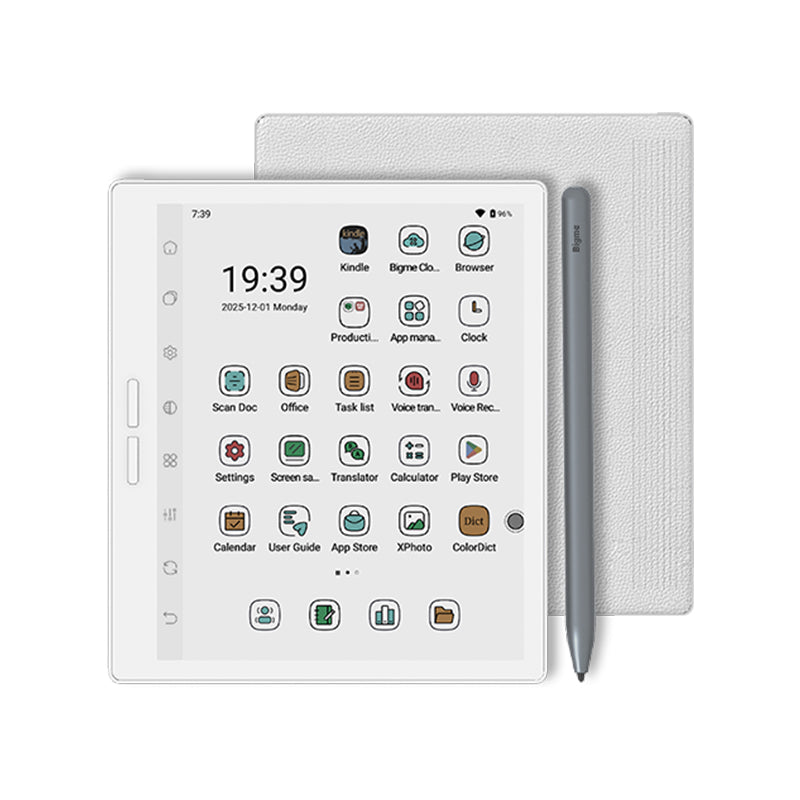
QUICK ANSWER
Charge it for at least two hours, then try one 12-second forced restart.
If a Bigme B751C is stuck on its logo, startup animation or last screen, connect it with a known-good USB-C cable to a 5 V, 2 A adapter. Bigme's manual specifies that power input, and Bigme support has advised affected owners to leave an unresponsive unit charging for two hours or more.
After charging, hold the power button for 12 seconds, then release it and give the tablet several minutes to start. If the logo keeps looping, the charge light never responds or the forced restart changes nothing, contact Bigme after-sales with the serial number. Do not download another owner's firmware or open the case.
READ THE SCREEN
A static E-Ink image is not a battery meter
Owner reports describe several symptoms under the same “bricked” label: a completely static logo, a logo that redraws in a loop, an unresponsive touchscreen with working buttons, and a tablet that starts only after a long hold. Those cases can need different remedies, and the reports do not establish one universal cause.
An E-Ink screen can keep its last image without power. The picture alone does not prove that the B751C is still running.
That is a boot loop. Give one startup time to finish, then use the documented forced restart once.
Bigme says this can mean the battery is full or the USB-C cable is not inserted correctly. Test the cable and power source before diagnosing a dead tablet.
A normal file-transfer connection has not started. Do not treat that as permission to use an unofficial flashing tool.
Look for physical warning signs before continuing. A cracked panel, black ink-like patches, a swollen case, liquid exposure, a burning smell or unusual heat is a hardware stop line. Disconnect power and use the warranty or repair route.
SAFE RECOVERY
Use the documented checks in order
- Remove accessories and inspect the port.Take off the folio and disconnect microSD cards or USB accessories. Check that the power button moves normally and the USB-C port is not damaged or packed with debris. Do not insert metal tools.
- Use the specified charger.Connect a known-good cable to a 5 V, 2 A adapter. Bigme's manual also allows charging from a computer USB port, but a wall adapter makes the power source easier to isolate.
- Leave it connected for at least two hours.Do not repeatedly press buttons while ruling out a deeply discharged battery. The manual says the white indicator stays on while charging and turns off when full, though an off light can also mean a poor cable connection.
- Try one forced restart.Hold the power button continuously for 12 seconds, then release it. Wait several minutes after the screen refreshes so Android has time to finish starting.
- Test one other cable and adapter.If there was no light or screen change, repeat the charging period with one other known-good cable and 5 V, 2 A adapter. Stop if the port or case becomes hot.
- Record what happens.Photograph or film the complete startup cycle. Note the model printed in Settings or on the packaging, serial number, last successful use, installed software version if known and whether a computer detects the tablet.
One controlled attempt after charging is useful evidence. Repeatedly cutting power during startup does not identify the cause and can complicate a software recovery.
FIRMWARE RECOVERY
Bigme's support package is case-specific, not a general download
In one detailed 2026 owner report, normal charging, cables and the 12-second restart did not end the startup loop. Bigme support later supplied firmware for that device, and the owner reported that the tablet recovered. Other B751C owners have also reported receiving support-provided firmware.
That is evidence that official recovery can work, not a safe invitation to share files. Owners report that Bigme asks for the serial number, and hardware or software revisions can differ between the B751C and B751C S. The current public warranty also excludes damage caused by unauthorized disassembly, repair or software outside Bigme's permitted scope.
- the exact model and hardware revision it is for;
- whether the process erases local books, notes, accounts or microSD data;
- which operating system and computer are required;
- the official file source and checksum, if available;
- the correct stop point if the tool cannot detect the tablet.
Contacting Bigme for serial-matched recovery is the supported next step after the public checks fail. It is not guaranteed to preserve data or repair a hardware fault. Get those consequences in writing before starting.
WHAT TO AVOID
Do not turn a recoverable loop into a harder repair
- Do not use firmware from a forum, cloud link or another owner. A similar product name does not prove the package matches your hardware revision.
- Do not enter random power and page-button combinations. Bigme's public manual documents the 12-second power-button reset. Unverified combinations can enter service modes without giving you a safe exit.
- Do not factory-reset before asking what will be erased. A reset can remove local notes, books, accounts and evidence without fixing damaged hardware.
- Do not open the case or disconnect the battery. Bigme's manual says the battery is not user-replaceable, and its warranty excludes unauthorized disassembly and repair.
- Do not let a seller close the return window while troubleshooting drags on. For a new unit, record the fault and contact both the seller and Bigme promptly.
If the tablet starts but only touch input remains dead, that is a different fault. Connect a mouse only if Bigme asks you to collect or export data, then use support rather than treating a factory reset as proof of a software cause.
WHEN TO ESCALATE
Contact Bigme when the safe checks do not produce one clean startup
Open a support case if the B751C still loops after a two-hour charge and one documented restart, the charge indicator never responds with two known-good cable and adapter combinations, the tablet becomes hot, the screen shows physical damage, or the fault returns after recovery.
Bigme lists aftersales@bigme.vip for after-sales support. Include the exact model, serial number, order number, purchase date, country and seller, a short video of the full loop, the chargers tested and any changes made before the problem began. Send serial numbers privately, not in public forum posts.
Bigme's current warranty page says devices have a 12-month warranty for hardware failures that are not user-caused, with repair or replacement terms depending on timing and region. Ask the seller about its own return deadline as well.
SOURCES
Official guidance and reporting limits
Manual, warranty and support information was checked on October 7, 2026. Owner reports were used to identify the symptom pattern and the existence of case-specific firmware recovery. They do not establish how common the problem is or prove one cause. Yeinks has not reproduced the fault on a device.